
What ToxiUI is and who it suits
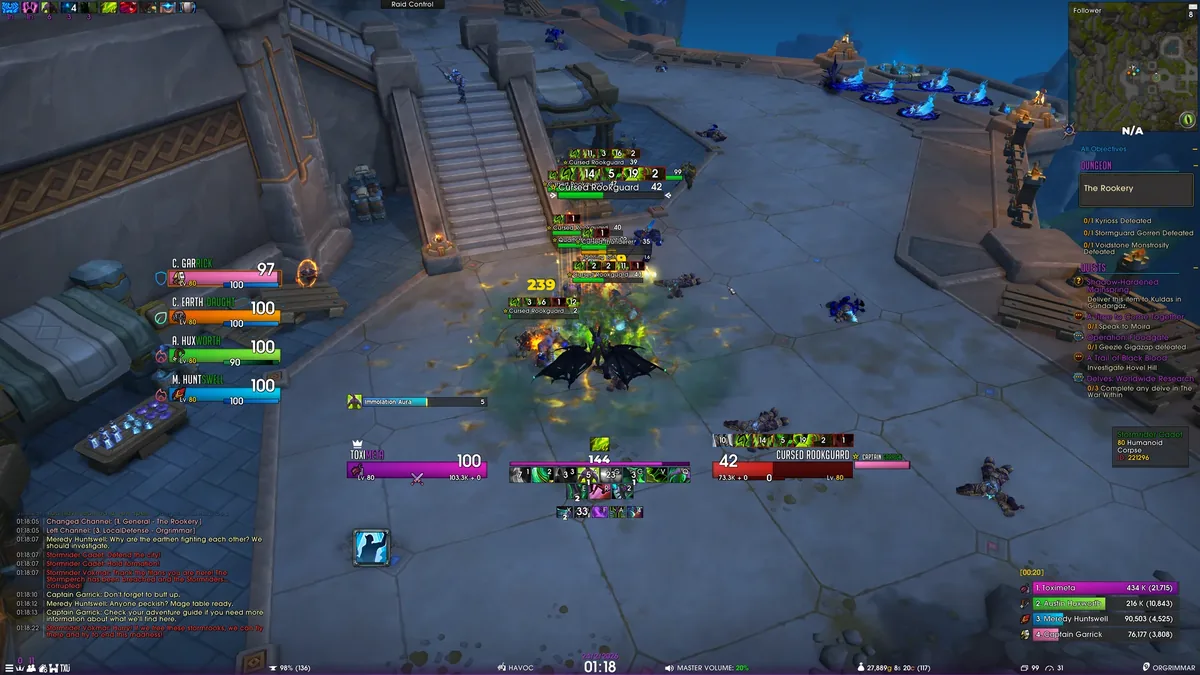
ToxiUI is an open-source visual package built on top of ElvUI. It changes the overall styling, action bars, unit frames, game menus, icons and supported addon skins while ElvUI remains the underlying interface framework. Downloading ToxiUI alone therefore does not provide a complete working UI.
The package suits players who want a dark, compact layout with guided setup instead of designing every ElvUI module from scratch. It is less suitable when you want a nearly stock interface, maintain a heavily customized profile, or cannot install the companion addons listed by the current installer.
ToxiUI v7.4.9 download and requirements
The latest verifiable release is v7.4.9. GitHub published it on July 8, 2026 and provides a stable release ZIP. The official website also points users to CurseForge, while GitHub exposes the exact tag, file name and archive size.
Install or update ElvUI before running ToxiUI. The official installation guide also calls for supported companion addons including Details!, BigWigs and Plater. Treat those as separate projects: update each from its official distribution source and avoid mixing files from private mirrors.
| Item | Verified value | Action |
|---|---|---|
| ToxiUI | v7.4.9 · July 8, 2026 | Use official GitHub or CurseForge |
| File | ElvUI_ToxiUI-v7.4.9.zip · 17.2 MiB | Extract before copying folders |
| Base UI | Current compatible ElvUI | Install ElvUI first |
| Companions | Details!, BigWigs, Plater and installer-listed modules | Use trusted project pages |
How to install ToxiUI safely
Close World of Warcraft before changing addon files. Back up the WTF folder and export any ElvUI profile you cannot easily rebuild. A backup lets you test the new layout without turning a cosmetic change into a full recovery job.
- 1
Install the correct ElvUI base
Confirm ElvUI, ElvUI_Libraries and ElvUI_Options are directly inside the active client's Interface/AddOns directory.
- 2
Add required companion addons
Install compatible Details!, BigWigs and Plater versions plus any dependency named by the current ToxiUI installer.
- 3
Extract the ToxiUI archive
Open ElvUI_ToxiUI-v7.4.9.zip and copy its addon folders into Interface/AddOns without leaving an extra wrapper directory.
- 4
Launch WoW and run the installer
Enable the addons, log in and follow the official ToxiUI installation guide. Preserve a separate profile before applying layout changes.
- 5
Reload and test in stages
Check unit frames, action bars, chat, nameplates and combat addons one module at a time.
First-run choices that affect the layout
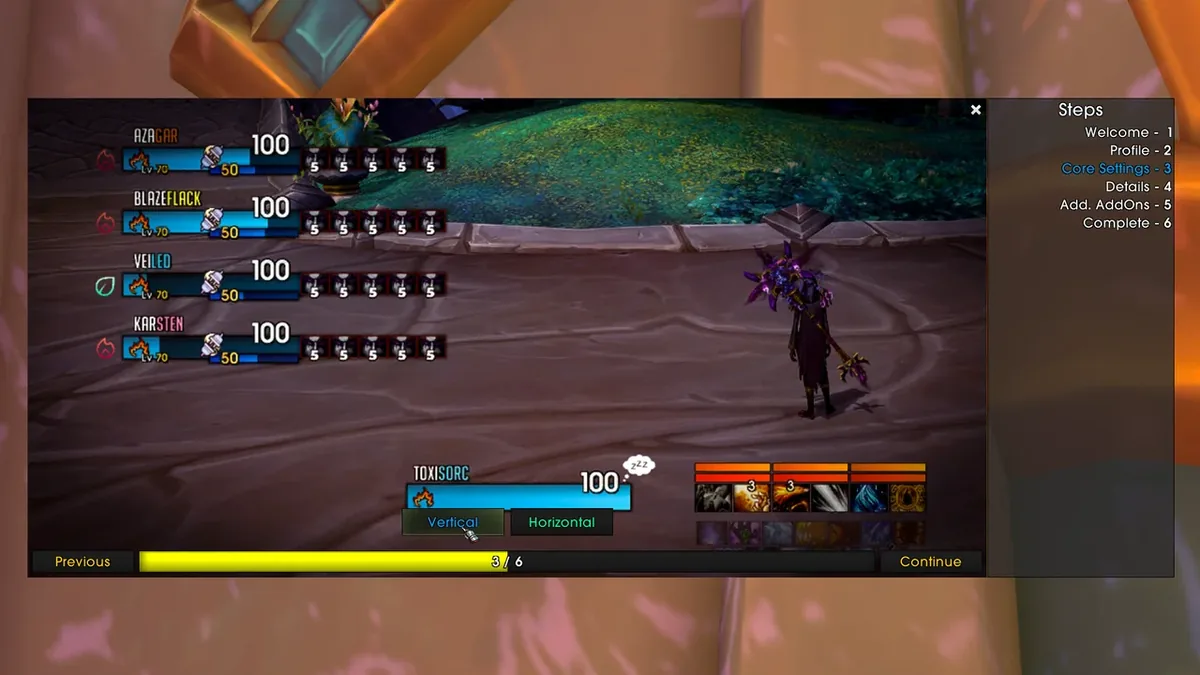
The installer can change more than colors. Review resolution, UI scale, role layout, nameplate behavior, action-bar visibility and supported addon profiles before accepting defaults. A layout designed for 1440p can feel crowded at 1080p, while an ultrawide setup may need wider center spacing.
Keep your original ElvUI profile under a separate name. If ToxiUI creates or selects a dedicated profile, test that profile first. This keeps your previous layout available for comparison and makes troubleshooting much faster.
- Choose the role layout that matches healer, tank or damage responsibilities.
- Confirm UI scale before moving individual frames.
- Review Details!, BigWigs and Plater profiles separately.
- Use skins only for addons you actually run.
How to update ToxiUI without losing settings
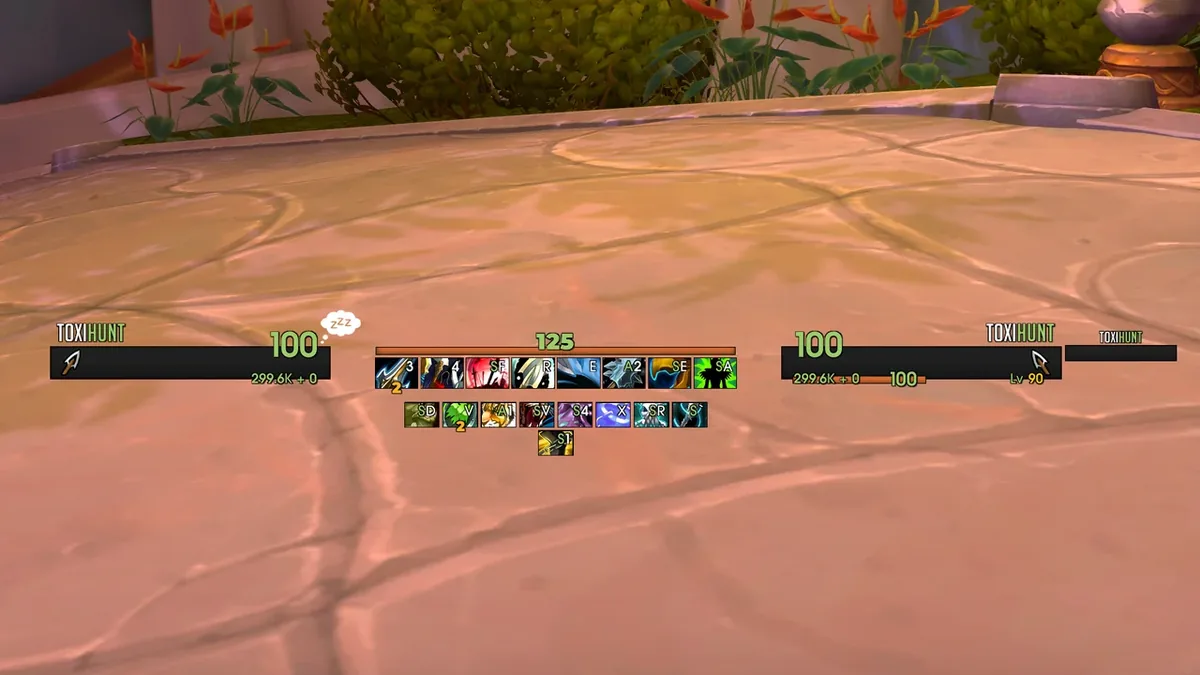
Back up WTF and export the active ElvUI profile before a major ToxiUI update. Close the game, replace the ToxiUI addon folders cleanly, update ElvUI and required companion addons, then read any migration prompt before rerunning the installer.
Do not delete WTF during a routine update. Saved variables live there, while addon code lives under Interface/AddOns. If a new release behaves badly, disable ToxiUI first and test the base ElvUI profile; this separates a plugin problem from an ElvUI or game-patch problem.
- Update ElvUI and dependencies first.
- Replace addon folders instead of merging old and new files.
- Keep one exported profile and one full WTF backup.
- Read release notes for installer or profile migrations.
Common ToxiUI problems and fixes
Most setup failures come from missing dependencies, mixed versions, the wrong WoW client folder or an overwritten profile. Start with the AddOns screen and file paths before changing dozens of in-game options.
| Symptom | Likely cause | First check |
|---|---|---|
| ToxiUI does not appear | Wrong folder depth or inactive client path | Find the active WoW Interface/AddOns folder |
| Installer stops | Dependency missing or outdated | Enable ElvUI and every installer-listed addon |
| Frames overlap | UI scale or profile mismatch | Reset scale and rerun the affected step |
| Lua errors after a patch | Mixed plugin, ElvUI or companion versions | Update all components and disable optional plugins |
| Removing ToxiUI leaves the theme | Theme profile is still selected | Switch to a clean ElvUI profile first |
ToxiUI versus a normal ElvUI profile
A normal ElvUI profile mainly stores ElvUI settings. ToxiUI combines a plugin, installer, styling and integrations with other addons, so it can produce a more consistent result but also introduces more dependencies. Choose a profile-only setup when portability and minimal maintenance matter most; choose ToxiUI when you want its specific visual system and can update the full addon stack.
For profile strings and role-specific layouts that do not require the plugin, use the site's best ElvUI profiles comparison. For the base package, start with the ElvUI installation guide.
- ToxiUI: integrated theme, installer and addon skins.
- ElvUI profile: lighter setup with fewer required components.
- Custom build: maximum control, but more manual maintenance.
ToxiUI FAQ
Does ToxiUI include ElvUI?
No. ToxiUI is built on ElvUI, so install a compatible ElvUI release first and keep its three core folders together.
What is the latest ToxiUI version?
The latest version verified on July 22, 2026 is v7.4.9, published July 8, 2026.
Where should I download ToxiUI?
Use the official ToxiUI site, CurseForge, or the project's GitHub releases. This guide links the verified v7.4.9 GitHub ZIP directly.
Will installing ToxiUI delete my ElvUI profile?
It should not delete saved variables, but the installer can select or change profiles. Back up WTF and export your current profile first.
How do I uninstall ToxiUI?
Switch to a clean ElvUI profile, disable ToxiUI and optional modules, then remove only the ToxiUI addon folders. Keep WTF until the base layout works.
Official sources checked
Version and setup facts were checked against the official ToxiUI website, the official installation guide, and the v7.4.9 GitHub release. Use these pages to verify future updates instead of trusting an undated mirror.