
The short answer: open Nameplates, then test one target
For the common nameplates elvui setup question, start with the smallest useful change. Type /ec, open the Nameplates module, select the display group you actually want to edit, and enable it if it is hidden. Change one size, visibility or filter option, then look at a live enemy or friendly unit. A plate that is configured correctly but has no matching unit can look broken when the real problem is simply that the test target does not meet the filter.
Keep Nameplates separate from UnitFrames. UnitFrames control player, target, focus, party and raid frames; Nameplates are the floating labels attached to units in the world. If a cast bar or target frame is missing, use the site's ElvUI Cast Bar guide or profile guide instead of changing unrelated nameplate settings.
- Use
/ecoutside combat when possible. - Choose Enemy, Friendly or the specific display group before editing.
- Test against a visible unit after each meaningful change.
- Export the working profile before importing a community layout.
- Do not treat a generated concept image as proof of an exact menu label.
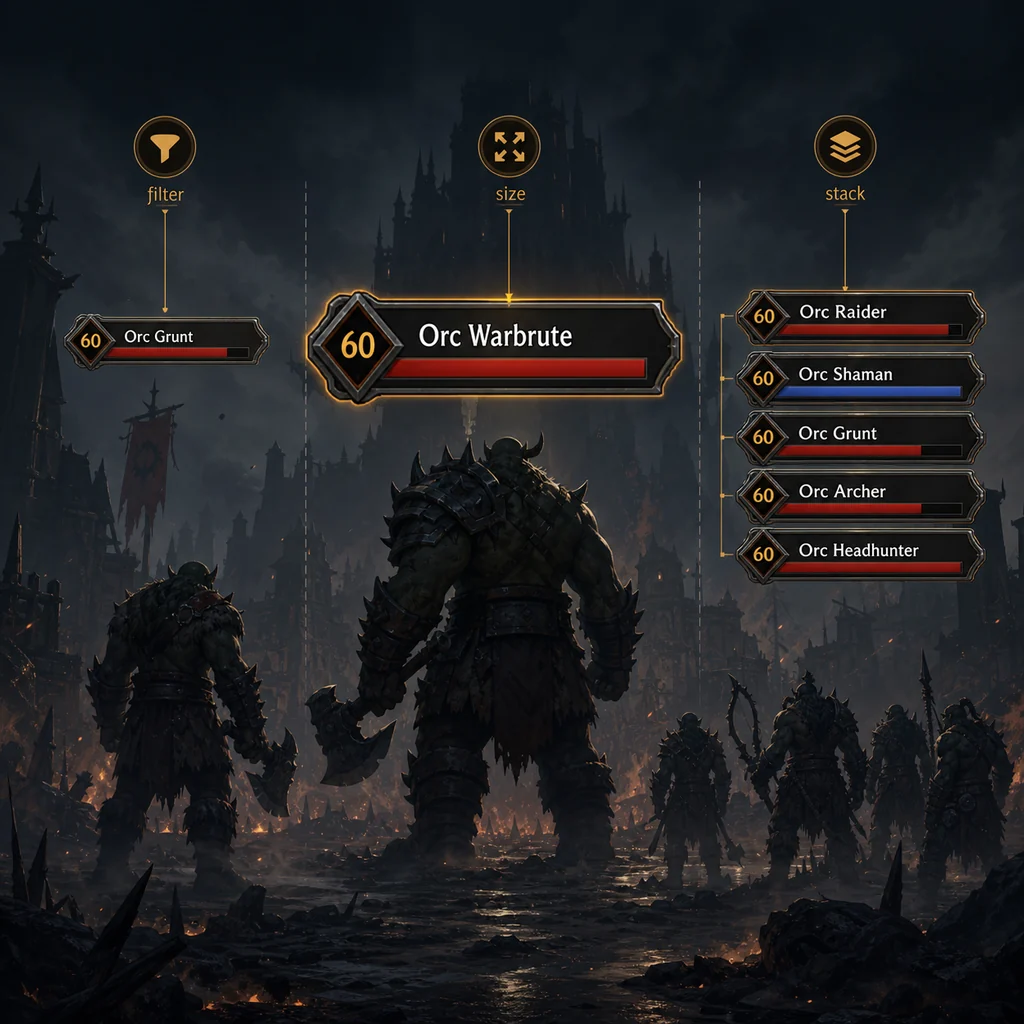
Where to find ElvUI nameplate settings
Open the ElvUI configuration with /ec and look for Nameplates rather than UnitFrames. The exact groups can differ between Retail, Classic branches and future releases, but the useful controls normally include enablement, enemy or friendly display, size, distance or visibility rules, stacking behavior, health text, level text and aura filters. Select one group at a time so a change to friendly plates is not mistaken for a failed enemy setting.
If the Nameplates module is missing, confirm that the three core folders came from the same release and that WoW is loading the client folder you edited. The installation guide covers the AddOns folder depth; the addons guide explains why optional plugins should be tested separately.
- 1
Open ElvUI options
Type
/ecand wait for the configuration panel to finish loading. Leave combat before dragging or changing several layout controls. - 2
Choose the display group
Select Enemy, Friendly or the group that matches the units you are observing. Do not change Friendly settings while testing an enemy mob.
- 3
Enable and simplify
Confirm the module is enabled, temporarily reduce filters and use a visible target. A simple test isolates visibility from aura or level filters.
- 4
Change one visual setting
Adjust size, spacing or text display one at a time. Save or reload only when ElvUI requests it, then repeat the same live test.
- 5
Export the result
Once the plates are readable, export the profile or copy your WTF backup before trying a community profile or optional plugin.
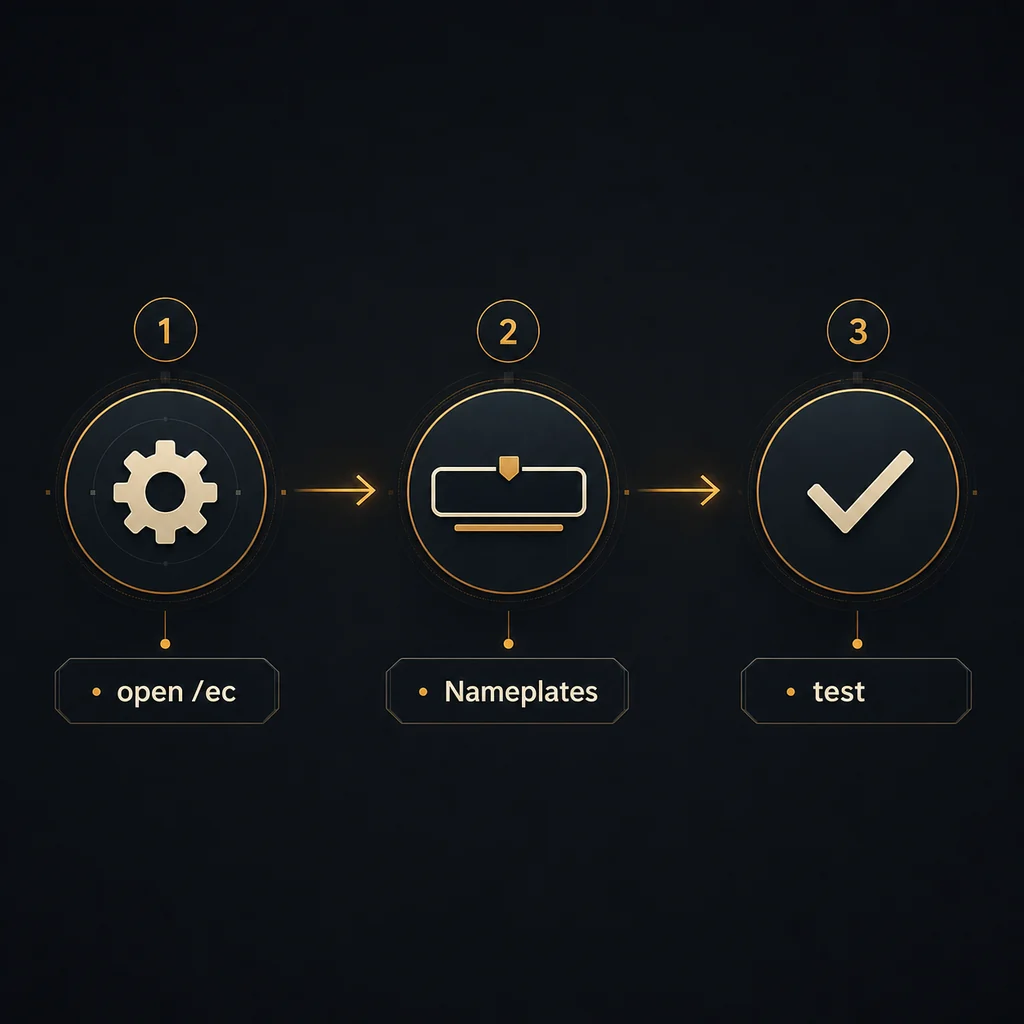
How to change size, stacking, and visibility
The size question is usually a combination of plate scale, health-bar dimensions, text size and the number of plates allowed on screen. Increase one variable at a time. If every plate becomes large, the screen can become harder to scan even though each label is easier to read. Start with a modest scale increase, then adjust the name or health text so important information remains distinct from the bar itself.
For ElvUI stacking nameplates, decide whether you need vertical separation, a compact spread or a flatter view for many mobs. A plate that overlaps another may be using a non-stacking mode, a very small spacing value, a distance rule or a third-party nameplate addon at the same time. Disable the competing display temporarily before changing the ElvUI layout.
When plates disappear, check visibility conditions before resetting the profile. Combat-only rules, distance limits, target filters, friendly/enemy selection and quest or NPC filters can all make a working module appear empty. If you want to disable ElvUI nameplates, turn off the relevant display group first and confirm that Blizzard or another addon is not still drawing a second set.
| Symptom | Likely cause | First safe check |
|---|---|---|
| Plates are too small | Scale, text size or bar dimensions are low | Increase one size control and test a single target |
| Plates overlap | Stacking mode, spacing or another nameplate addon | Disable the competing display and test a simple stack |
| Only some units appear | Enemy/friendly, distance or filter rule | Select the matching group and temporarily reduce filters |
| Plates vanish in combat | Combat, visibility or target condition | Review the condition and test outside a crowded encounter |
| Two sets are visible | ElvUI plus Blizzard or another addon | Identify the second source before disabling a module |
Show level, buffs, debuffs, and useful filters
Level text, health text and classification can help when a group contains many similar mobs, but every extra label competes for the same small area. Add level information only if it answers a real decision during play. If the option is unavailable, confirm that you are editing the correct display group and that the unit type exposes the data; do not assume every NPC or player plate has the same fields.
The ElvUI nameplates buffs and debuffs controls should be treated as a filter problem first. Choose which auras matter, limit the number shown and test against a unit that actually has the effect. A profile import can bring filters, fonts and textures, but it does not install a missing addon or guarantee that another player's client exposes the same aura data. The site's profile guide explains how to import into a separate profile and roll back safely.
- Use level text when unit level changes how you choose or prioritize a target.
- Keep health and name text readable before adding decorative details.
- Filter buffs and debuffs by the effects you actually act on.
- Test the filter with a unit that definitely has the aura or level data.
- Import community profiles into a new profile instead of overwriting the only working layout.
Fix missing, overlapping, or unchanged nameplates
Start with a clean diagnostic sequence: reload the current profile, simplify the filter, verify the correct client branch, and test with only the base ElvUI folders enabled. If the problem started after an update, close WoW and replace ElvUI, ElvUI_Libraries and ElvUI_Options from one verified release instead of merging old and new module folders. Keep the WTF backup so the configuration can be restored after the code path is known to work.
If the plates still look like vanilla Blizzard nameplates, identify which system is actually visible. A Blizzard display, a third-party nameplate addon and ElvUI can each draw a similar-looking bar. Disable one source at a time, reload, and avoid changing five filter settings before you know which source remains. If only one character or client branch is affected, compare a fresh profile before deleting saved variables.
A profile import may also make plates appear too large, too small or empty because it carries conditions built for another resolution, class, client branch or optional plugin. Export your current profile, import the new one under a separate name, and compare the active display group before deciding that the ElvUI module is broken.
| Problem | What it usually means | Safe next step |
|---|---|---|
| No plates appear | Wrong group, visibility rule or client folder | Test a simple enemy group and check the active AddOns path |
| The plates overlap after an import | Scale, spacing or profile conditions do not fit the resolution | Use a separate profile and reset only nameplate layout controls |
| The display is still green or vanilla-looking | Blizzard or another addon is drawing the visible plates | Disable competing sources one at a time |
| Only buffs or level text is missing | Filter does not match the unit or the data is unavailable | Test a known aura/level and reduce filters |
| The issue follows an update | Mixed folders or optional plugin conflict | Clean-replace the three core folders and test base ElvUI |
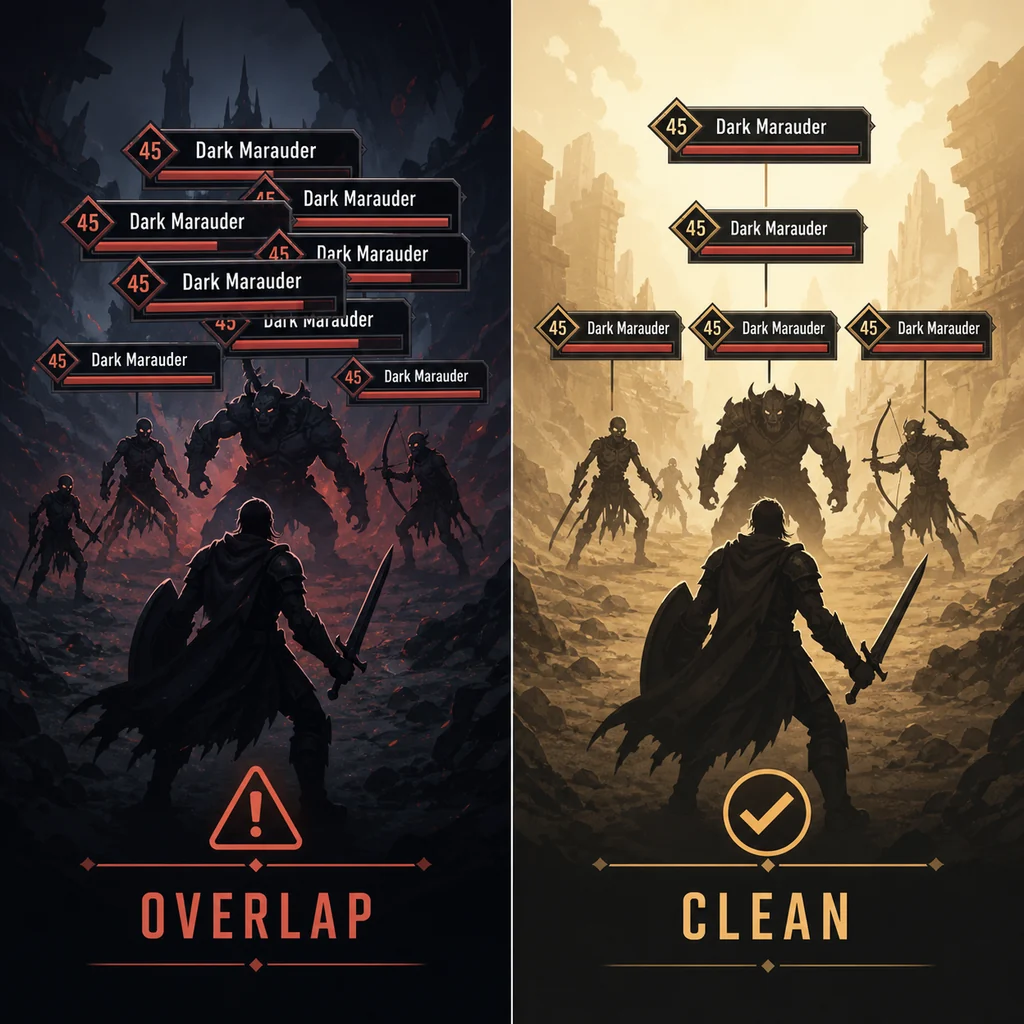
ElvUI Nameplates FAQ
How do I enable ElvUI nameplates?
Type /ec, open Nameplates, choose the Enemy or Friendly display group, enable it and test a visible unit. If nothing appears, temporarily reduce filters and verify that WoW is loading the correct client AddOns folder.
How do I make nameplates bigger on ElvUI?
Open Nameplates under /ec and increase one scale, bar-size or text-size control at a time. Test a single target after each change so you can tell whether the problem is scale, spacing or visibility.
How do I stack ElvUI nameplates without overlap?
Check the stacking or spacing behavior, then confirm that another nameplate addon or Blizzard display is not drawing a second set. Isolate the visible source before changing the profile.
How do I disable ElvUI nameplates?
Disable the relevant Enemy or Friendly Nameplates display group under /ec. Then verify whether Blizzard or another addon is still showing plates, because turning off ElvUI does not remove a second source.
How do I put mob level on ElvUI nameplates?
Look for level or health-text options in the matching Nameplates display group and test against a unit that exposes level data. If the field is absent, the unit type, filter or client branch may not provide it; do not assume every plate supports the same text.
Can ElvUI nameplates show buffs and debuffs?
Yes when the active display group and client data support the aura options. Configure a small filter set, test with a known effect and keep only the buffs or debuffs that help you act during play.
Why did an ElvUI nameplates profile import make everything look wrong?
The imported profile may use different scale, spacing, conditions, resolution or optional media. Export your working profile, import into a new profile and compare the active display group before resetting the whole addon.
Do ElvUI nameplate settings work the same on Classic?
The Nameplates concept and /ec workflow are similar, but available fields, client APIs and menu labels can differ. Test the actual Classic branch and keep its profile separate from Retail when the layouts diverge.
Sources and current-version boundary
The current release context was checked on October 8, 2026 against the Tukui ElvUI API and the public v15.26 release tag. ElvUI 15.26 was released on August 29, 2026. The stable v15.26 source archive returned HTTP 200 with application/zip; GitHub did not expose a stable Content-Length, so this page does not invent a file size or call a mirror official.
Official Tukui screenshots checked for this assignment showed the overall ElvUI interface, UnitFrames, Action Bars, Chat and Minimap, but did not provide a sufficiently clear Nameplates-specific capture. The three images on this page are therefore labeled editorial concept illustrations. They explain relationships and troubleshooting states; they are not official screenshots and should not be used as proof of an exact menu label.