
The short answer: enable the correct unit Castbar
ElvUI can draw more than one castbar because player, target, focus, boss and arena units are separate unit-frame modules. A missing bar is usually disabled on the specific unit you are watching, while a bar that appears twice usually means ElvUI and the default Blizzard castbar, or two addons, are both active. Open the ElvUI configuration with /ec, go to the unit-frame settings, choose the unit and open its Castbar options. Turn the module on, save or reload, then test a visible spell cast.
Do not reset all saved variables as the first step. A profile reset can remove working frame positions, filters and action-bar choices while leaving the real cause untouched. First identify whether the missing bar belongs to your player, the current target, a focus unit or a party/raid frame. Then change only that module and keep a profile export or WTF backup before experimenting.
- Use
/ecto open ElvUI options. - Select the unit that should show the castbar: Player, Target, Focus, Boss or another supported unit.
- Open Castbar, enable it and test a real cast before changing size or position.
- If two bars remain, identify the second source before disabling anything.
Where to find the ElvUI castbar setting
In the current configuration layout, start at UnitFrames and open the group for the unit you need. Depending on the client branch and release, the menu may be described as Individual Units, Group Units, or a similar unit-frame category. Choose Player for your own castbar, Target for the unit you are attacking, and Focus when you want a second monitored spell. The exact menu label is less important than selecting the correct unit before opening Castbar.
A castbar can be enabled for one unit and still be absent from another. That is why copying a setting from a player screenshot does not prove that the target or focus castbar is configured. Check the unit name in the option panel, confirm the enable switch, and test the unit in the game world. For boss and arena frames, the unit may only exist during the relevant encounter, so test in the matching content instead of assuming the option failed.
If the panel refuses to open or the Castbar section is missing, verify that the three core ElvUI folders came from the same release and that the active WoW client is loading the folder you edited. A mixed install can show the interface while loading an older module or an incomplete options directory. The installation guide explains the folder-depth and client-directory checks before you continue with configuration.
- Player castbar: use the Player unit settings.
- Target castbar: use Target and test against an interruptible spell.
- Focus castbar: set a focus target first, then test a spell from that unit.
- Boss or arena castbars: test inside the content that creates those units.
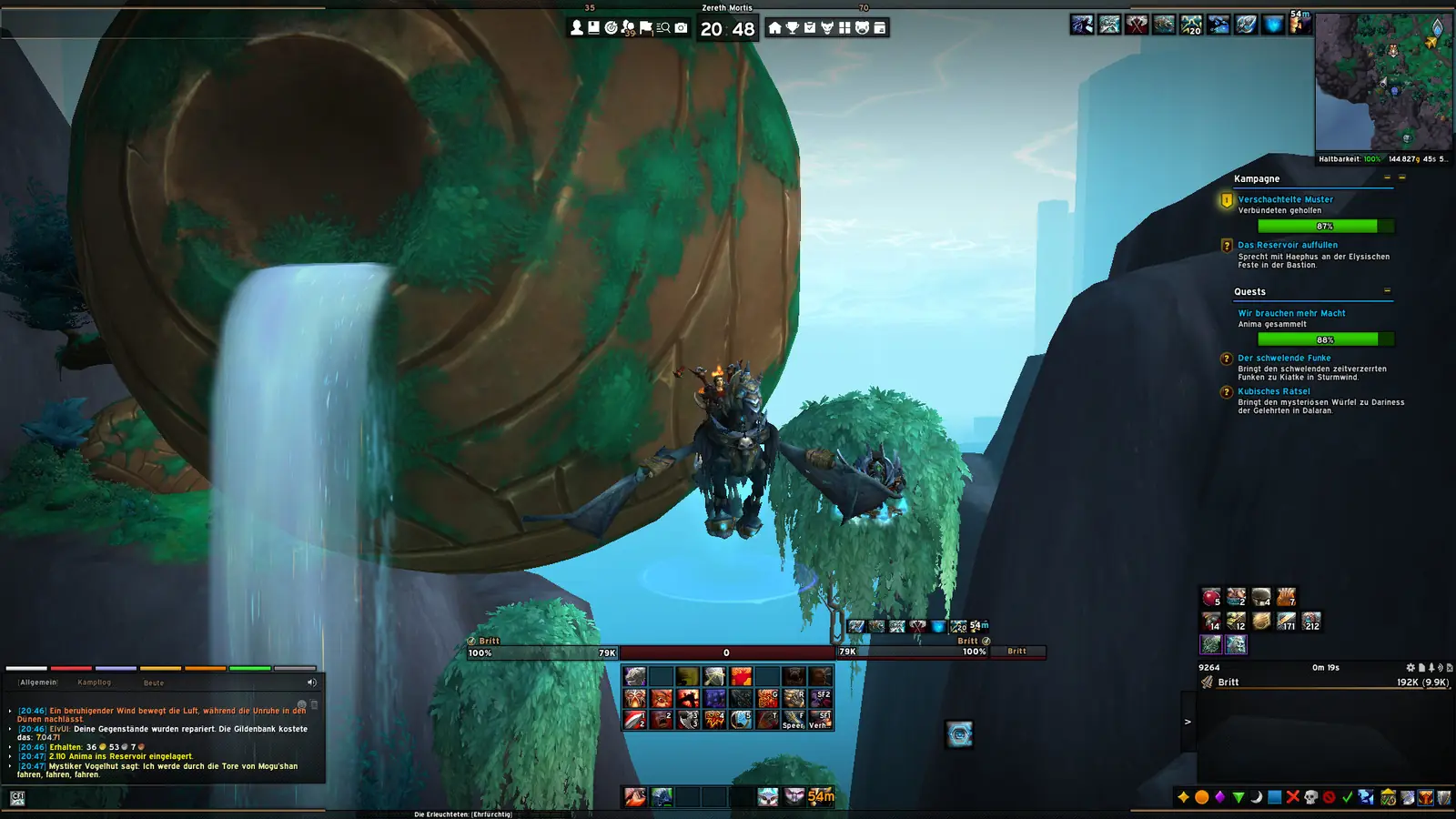
How to enable a player, target, or focus castbar
Use this sequence when the option is present but the bar is not visible. Keep the first test simple: cast a short spell while standing still, or ask a target to begin a recognizable cast. A long channel, an instant spell and a unit with no cast all produce different visual results. Testing with a real cast prevents a working but empty bar from being mistaken for a broken module.
- 1
Open ElvUI configuration
Type
/ecin chat. If the command does nothing, confirm that ElvUI is enabled on the character-selection AddOns list and that you are editing the active client. - 2
Choose the unit
Open UnitFrames and select Player, Target, Focus or the relevant group. Do not change Player while testing a target castbar; each unit stores its own Castbar settings.
- 3
Open Castbar options
Find the Castbar module for the selected unit and enable it. Review whether the module is hidden outside combat, when the unit has no target, or when the current spell is instant.
- 4
Reload and perform a live test
Use
/reloadif the panel requests it, then perform a visible cast. Check the label, icon, timing and interrupt state before fine-tuning the layout. - 5
Export a working profile
After the bar works, export the profile or keep a dated WTF backup. That gives you a rollback point if a later profile import, plugin or client update changes the frame.
How to move the cast bar with Movers
ElvUI uses movable anchors instead of requiring you to guess screen coordinates. Open the Movers controls from the ElvUI configuration. Older guides may call this area Toggle Anchors; newer releases place the mover controls more prominently and use Movers as the working label. Enter the mover mode, locate the castbar anchor, drag it to a clear position and exit the mode before testing again.
Place the bar where it can be read without covering the player frame, action buttons or important combat text. A central position is easy to notice, but it can compete with the character and target frames. Healers may prefer a location near the center while keeping raid frames clear; damage players may place the player castbar above the action bars. The right position depends on resolution, UI scale and role, so use the actual screen where you play rather than copying coordinates from a screenshot.
If you cannot find the anchor, first confirm that the Castbar module is enabled for the same unit. A disabled or context-only bar may not expose the mover you expect. Use the mover reset control for that anchor, not a full profile reset, and then reapply your size and position choices.
- Open Movers from ElvUI options and select the castbar anchor.
- Drag the correct unit bar, not a target or focus bar with a similar shape.
- Keep the bar away from the chat, action bars, raid frames and screen edges.
- Use the anchor reset control when one position is wrong; keep a profile reset as a last resort.
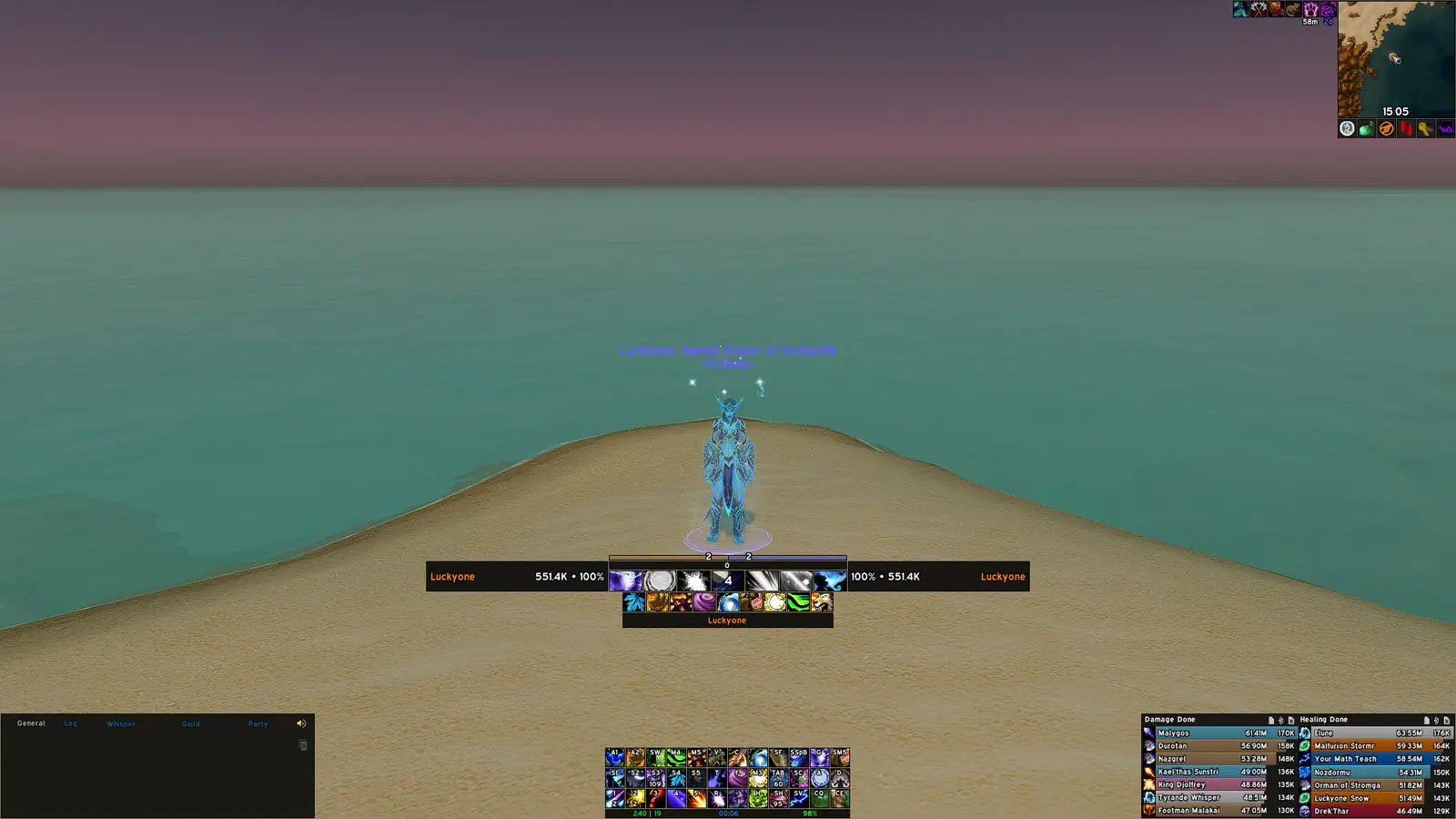
If you see two castbars at the same time
A duplicate bar is not fixed by moving both bars until they overlap. First decide which system should own the castbar. ElvUI may be drawing a player or target bar while the default Blizzard Player Cast Bar remains enabled. A third-party unit-frame, boss-mod or skinning addon can also create another bar. Temporarily disable one competing source, reload, and test a known cast so you can identify the owner.
When you choose ElvUI as the owner, keep the Blizzard bar hidden only after confirming that the ElvUI bar shows the information you need: spell name, icon, progress, interruptibility and target context. When you choose another addon, disable the corresponding ElvUI Castbar module for that unit instead of leaving two systems active. This makes future profile imports and troubleshooting much easier.
Do not describe every second bar as an ElvUI bug. A duplicate often comes from a profile that enables both layers, an addon that was re-enabled after an update, or a client branch that exposes a different default frame. Record which addon remains visible after each test. That small note is more useful than repeatedly deleting saved variables.
- Check ElvUI Castbar first.
- Check Blizzard's default player castbar or a separate unit-frame addon.
- Reload after changing one source at a time.
- Keep only the owner that provides the labels and interrupt information you actually need.
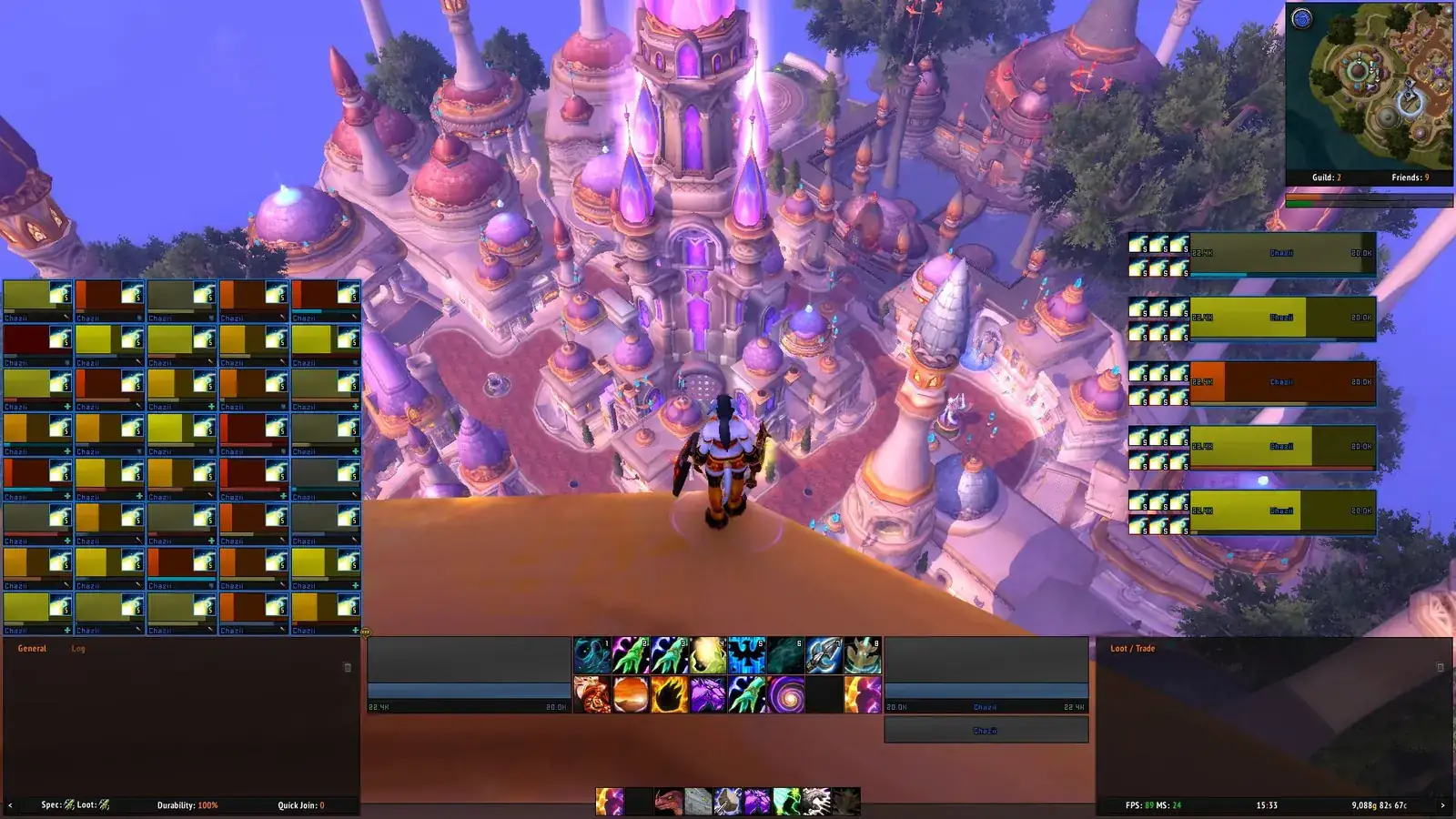
Fix a missing, frozen, or reset castbar
When a castbar worked yesterday but disappeared after a login, profile import or patch, use a narrow diagnostic sequence. Test a clean temporary profile before deleting the saved variables of your working character. If the bar appears in the temporary profile, the module is healthy and the issue is likely a profile setting, anchor, filter or plugin conflict. If it still fails, check the active client folder and the three core addon directories before changing versions.
A frozen bar can be a display problem rather than a timing problem. Check whether the bar is behind another frame, outside the viewport, scaled to an unreadable size or hidden by a combat-only rule. Reset the single castbar anchor, restore a sensible width and height, and test a short cast. If the spell label updates but the progress does not, disable skins or third-party castbar replacements one at a time.
If an update introduced the problem, use the current package as the baseline and back up WTF before any rollback. At the freshness check for this page, Tukui reported ElvUI 15.24 with a August 19, 2026 update date. The update guide explains how to replace the three addon folders without deleting saved profiles.
| Symptom | Likely cause | First check |
|---|---|---|
| No player bar | Player Castbar is disabled | UnitFrames > Player > Castbar |
| Target bar is missing | Target module or test context is wrong | Set a target that is actively casting |
| Bar is off-screen | Mover anchor was imported at another resolution | Reset only the castbar anchor |
| Two bars overlap | ElvUI and Blizzard or another addon are both enabled | Disable one owner and reload |
| Bar freezes after an update | Skin/plugin or mixed release conflict | Test base ElvUI with a clean profile |
Customize size, information, and profile safety
Once the castbar is visible and correctly positioned, adjust one variable at a time. Width and height determine readability; icon and spell-name choices determine recognition; latency, tick or interrupt indicators determine how much combat detail the bar carries. A crowded bar can be technically complete but harder to read than a simpler layout. Start with a size that remains legible at your normal camera distance, then remove information you never use.
Player, target and focus bars can have different sizes and positions. That is useful when you want your own cast to be prominent but enemy casts to sit near the interrupt keybinds. Keep the visual relationship consistent: a bar should stay close to the frame or unit it describes, and a target bar should not look like a second player bar after a profile import. If you change multiple units, write down the intended relationship before exporting the profile.
Profile strings do not install fonts, media packs or every companion addon shown in a screenshot. If a castbar style looks different after importing a community profile, compare the base ElvUI version, UI scale, screen resolution and required plugins before assuming the castbar setting is broken. The profile guide covers backup and import boundaries, while the addons guide explains how to isolate companion projects.
- Tune width and height before adding more indicators.
- Keep player, target and focus bars visually distinct.
- Export after a working change and label the profile with the ElvUI release and resolution.
- Test a clean profile before deleting WTF or downgrading the addon.
Classic clients, release changes, and source boundaries
The Castbar concept applies across supported Retail and Classic branches, but the available unit types and default frame behavior can differ. Test the exact client you launch and keep separate profiles when a branch needs a different layout. A menu path copied from Retail may not match a Classic screen word for word; look for the selected unit's Castbar module and the Movers controls rather than forcing an old screenshot's labels.
The current release baseline checked for this guide is ElvUI 15.24 from Tukui. The official package exposes the ElvUI, ElvUI_Libraries and ElvUI_Options directories, while this site's direct archive points to the matching public Git tag. If a future release changes a label or moves an option, re-check the official release page before treating an older instruction as current. Do not download an unverified ZIP just because it contains the word castbar or a familiar version number.
For official release information, use the Tukui ElvUI page and the public ElvUI repository. The repository's changelog is useful for menu changes such as the move from Toggle Anchors to Movers. These sources describe the addon; they do not guarantee that a community profile or third-party plugin remains compatible with every client branch.
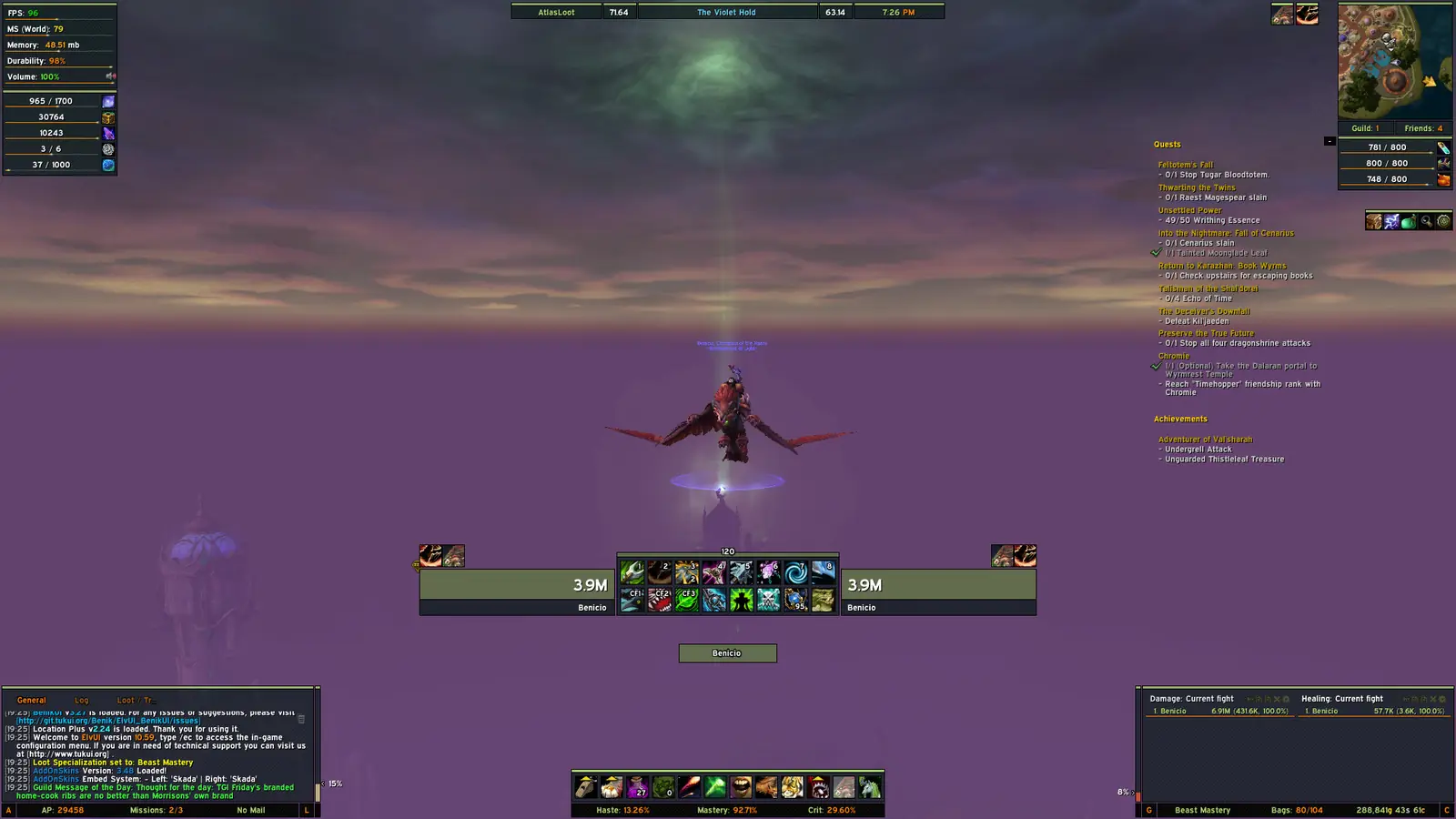
ElvUI castbar FAQ
How do I enable the ElvUI castbar?
Type /ec, open UnitFrames, choose the unit you want to monitor and enable its Castbar module. Test with a real cast after reloading the interface.
How do I move the ElvUI cast bar?
Open the Movers controls in ElvUI, select the castbar anchor for the correct unit and drag it. Older guides may call this area Toggle Anchors.
Why do I see two castbars?
ElvUI may be drawing one bar while the Blizzard default castbar or another addon draws a second. Disable one owner, reload, and test again instead of moving both bars together.
Why is my target castbar missing while the player bar works?
Player and Target are separate unit-frame modules. Open the Target settings, enable Target Castbar and test against a unit that is actively casting.
Can I reset only the castbar position?
Yes. Use the reset control for the castbar anchor in Movers. Keep a profile export or WTF backup before using a broader reset.
Will importing an ElvUI profile add the castbar's fonts or plugins?
No. A profile stores configuration, but fonts, media packs and companion addons may be separate requirements. Compare the profile notes and test base ElvUI first.
Does this path work on Classic?
The same idea applies on supported Classic branches, but unit names and menu labels can differ. Select the active unit's Castbar module, test in that client and keep branch-specific profiles separate.
Sources and verification notes
Version and package facts were checked against the Tukui ElvUI API on August 22, 2026. The API reported ElvUI 15.24, last updated August 19, 2026, with the three core directories used by the current package. The stable v15.24 Git tag archive returned HTTP 200 with an application/zip response during verification; GitHub did not expose a stable content length in that response, so no file size is claimed here.
The screenshots on this page are existing ElvUI interface media already present in this repository. They are used as contextual UI references, not as generated or guaranteed pixel-perfect menu screenshots. Menu names can change between client branches and releases; when the label differs, select the relevant unit's Castbar module and look for Movers or anchor controls.