
The short answer: choose Chat, then move the correct window
For the common ElvUI chat setup question, do not start by deleting the profile. Type /ec, open the Chat module and identify whether you are editing the main chat, a second tab, a combat log or a separate right-side window. Then open Movers and drag the matching anchor. A chat panel can look missing when it is simply off-screen, collapsed, attached to another frame or hidden by a visibility rule.
Keep Chat separate from ActionBars and UnitFrames. The chat module controls tabs, message display, bubbles, font and background behavior; the ElvUI Action Bars guide covers buttons and paging, while the Cast Bar guide covers spell progress. Testing one module at a time makes a profile problem much easier to isolate.
- Use
/ecoutside combat when possible. - Select the exact chat window or tab before changing its appearance.
- Use Movers for position instead of guessing coordinates.
- Export a working profile before importing a community layout.
- Treat the generated chat illustration on this page as a concept image, not an exact ElvUI screenshot.
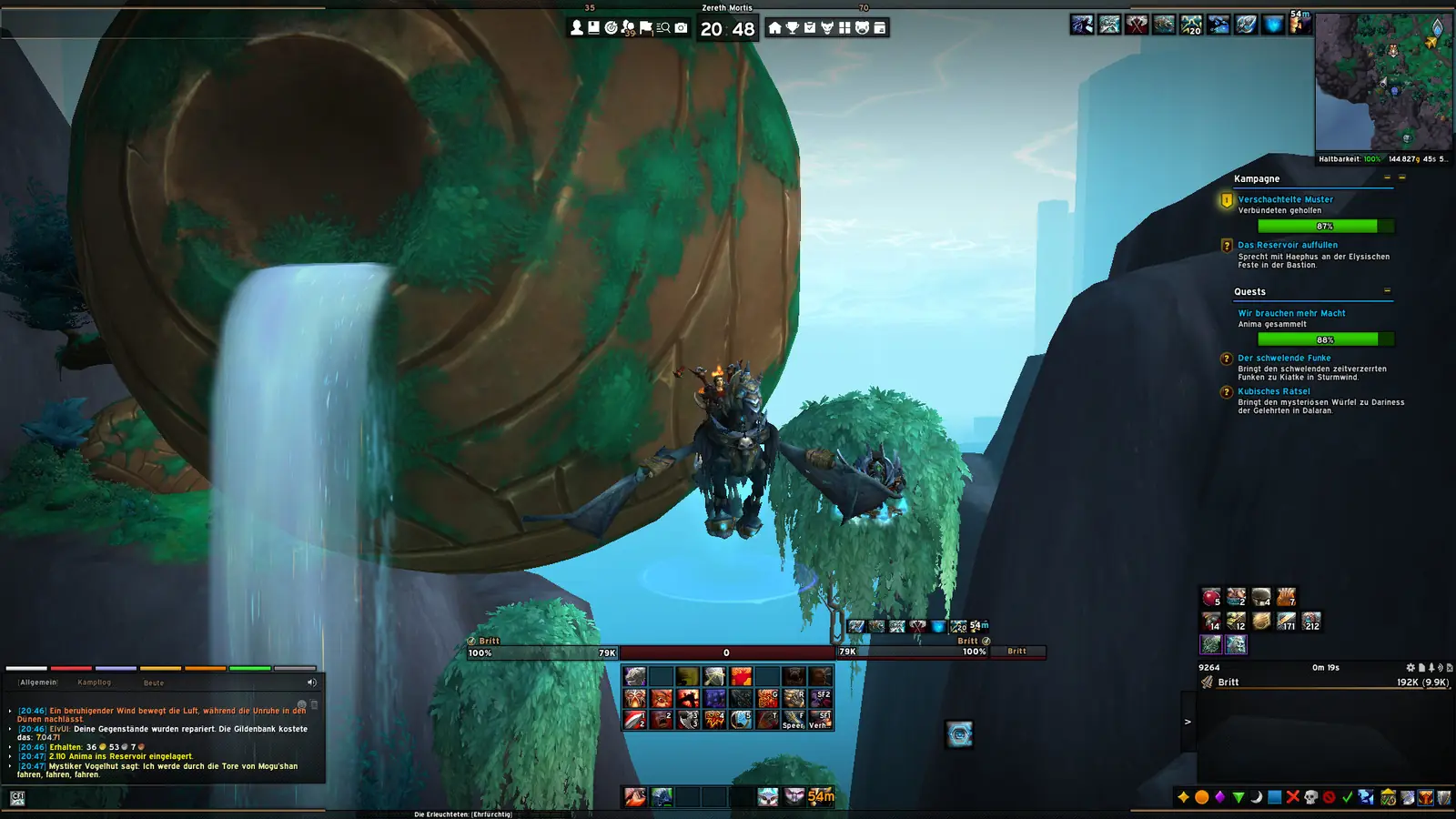
Where to find ElvUI chat settings and Movers
Open ElvUI with /ec and find Chat in the module list. Depending on the client branch and release, you may see general chat controls, individual windows, tabs, edit boxes, chat bubbles and message-type filters in different groups. The useful rule is stable: select the window that is visibly wrong, change one control and test a real message before changing every panel.
Movers handles the saved position. Enter the mover mode, locate the anchor for the active chat window and drag it to a readable area. If the anchor is not visible, first make sure the window is enabled and has a visible tab or message. The ElvUI addons guide explains how to rule out an optional skin or chat replacement before you reset the base profile.
- 1
Open the configuration
Type
/ecand wait for the ElvUI panel to finish loading. Leave combat before moving several anchors. - 2
Choose Chat
Open the Chat module and identify the main window, the second window, the edit box or the bubbles you actually want to change.
- 3
Enable a simple test
Keep one visible tab, send a short message and temporarily reduce filters. This confirms that the panel exists before you style it.
- 4
Use Movers
Enter the mover view, drag the matching chat anchor and check that it does not cover action bars, raid frames or the quest area.
- 5
Save the working state
Export the profile or keep a dated WTF backup before importing a new layout, changing fonts or enabling a chat skin.
How to move, resize, or remove the right chat
To move an ElvUI chat window, use Movers and drag the anchor rather than repeatedly changing scale. To resize it, adjust width and height for the selected window, then check the font and edit-box size separately. A wider panel can still feel cramped when the text is too large, while a smaller panel can remain readable if tabs and message spacing are controlled.
If you want to remove the right chat in ElvUI, first decide whether it is a second ElvUI window, a combat log, a Blizzard panel or another addon. Hide the matching window in Chat settings, remove its tabs only when you understand the result, and reload. Do not cover it with the main chat or delete saved variables: overlapping panels make future profile imports harder to diagnose.
| Goal | First control to check | Safe verification |
|---|---|---|
| Move the main chat | Movers and the main chat anchor | Send a message and confirm the frame stays in the chosen area |
| Make the window wider | Width for the selected chat window | Test a long URL or party message without changing font size yet |
| Make text easier to read | Font size, message spacing and background opacity | Compare one tab at the normal UI scale |
| Hide the right chat | The second window or combat-log visibility option | Disable one source, reload and check that the main chat remains |
| Remove duplicate panels | Which addon owns each visible frame | Turn off one owner at a time instead of stacking them |
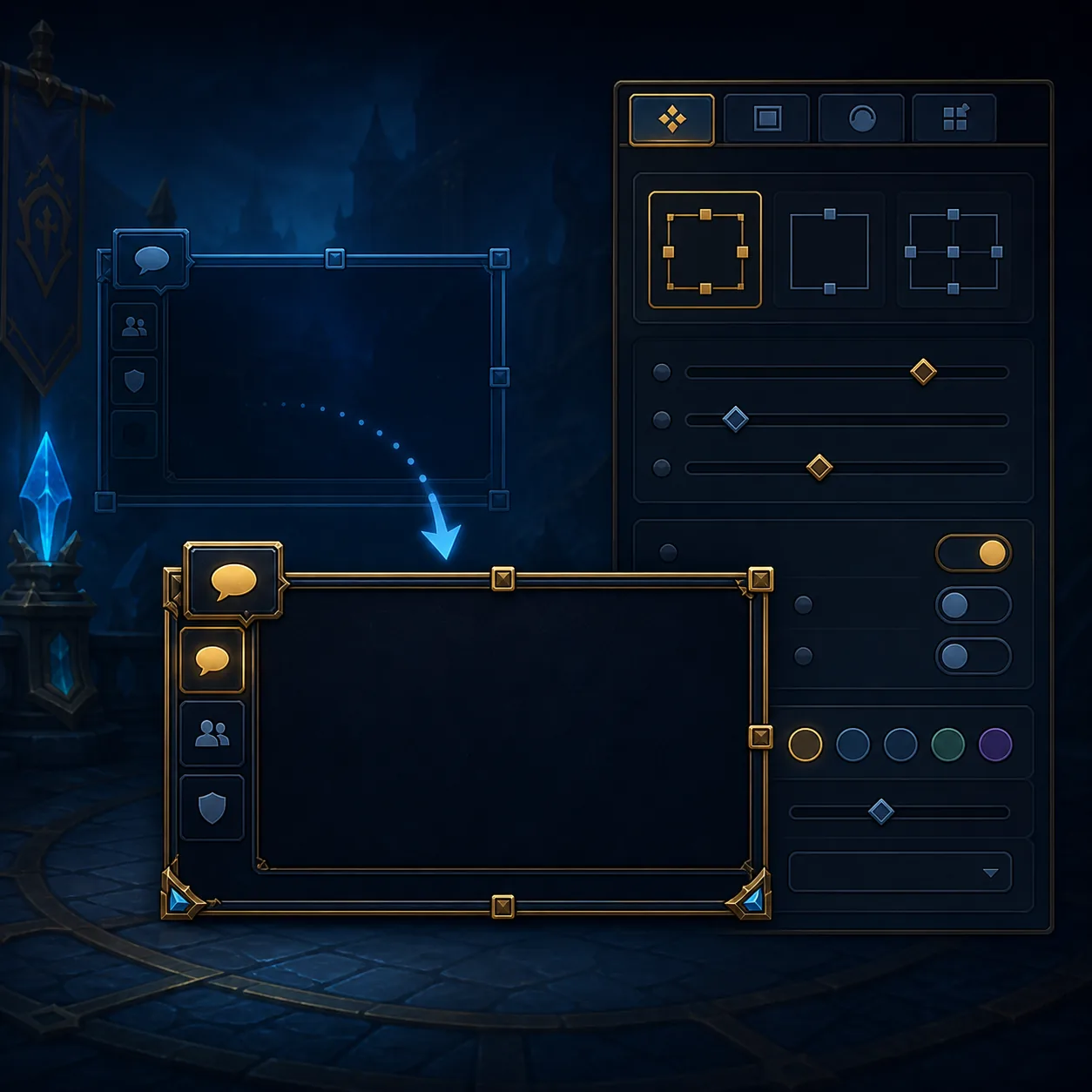
Change tabs, font size, bubbles, background, and message filters
Chat readability comes from several small settings rather than one magic switch. Start with the tabs you actually use, then decide which message types belong in each window. Keep system, loot, combat and social messages separated only when that separation helps you act; too many tabs can make a panel appear empty because the message was routed somewhere else.
For chat bubbles, check whether the display is controlled by ElvUI, Blizzard or a separate addon. Bubble scale and chat-window font size are different controls, so changing one may not affect the other. If a background looks too bright or too dark, adjust opacity and border styling after the text is readable. Keep a profile export before applying a skin that changes fonts or textures.
- Use a simple tab layout before adding message filters.
- Change font size and frame size separately so the cause stays clear.
- Check chat bubbles independently from the window and edit box.
- Route one message type at a time when diagnosing an empty tab.
- Treat fonts, textures and chat skins as separate dependencies from the base profile.
Fix chat that disappears, keeps moving, or fails in instances
When ElvUI chat is not working in instances, compare the message-routing and visibility rules before reinstalling. A panel may be hidden in combat, attached to a frame that changes in a dungeon, or filtered so aggressively that no test message qualifies. Send a party message, open the chat tab and check whether the frame moved or whether the message went to another window.
If the chat keeps moving after a reload, look for an imported profile, a mover reset, Edit Mode interaction or another addon that owns the same frame. Disable one competing source, reload and repeat the same test. If the issue began after an update, close WoW and replace ElvUI, ElvUI_Libraries and ElvUI_Options from one verified release. The update guide covers clean replacement without deleting saved variables.
For a missing or duplicated window, create a temporary profile and enable only base ElvUI. If the chat works there, compare filters, anchors and optional plugins with the original profile. If it still fails, verify the active Retail or Classic AddOns path using the installation guide before touching WTF.
| Symptom | Likely cause | First safe check |
|---|---|---|
| Chat is gone | Window disabled, off-screen or hidden by a condition | Enable one window, show one tab and use Movers |
| Chat keeps moving | Profile import, mover reset, Edit Mode or competing addon | Test a clean profile and disable one owner |
| The tab is empty | Message filter or routing sends content elsewhere | Send a known message and inspect each tab |
| Chat fails in an instance | Combat or instance visibility rule | Test a party message with the visibility rule simplified |
| Two chat windows overlap | ElvUI, Blizzard or another addon draws both | Identify the owner and disable one source |
| Issue started after update | Mixed addon folders or optional plugin conflict | Clean-replace the three core folders and test base ElvUI |
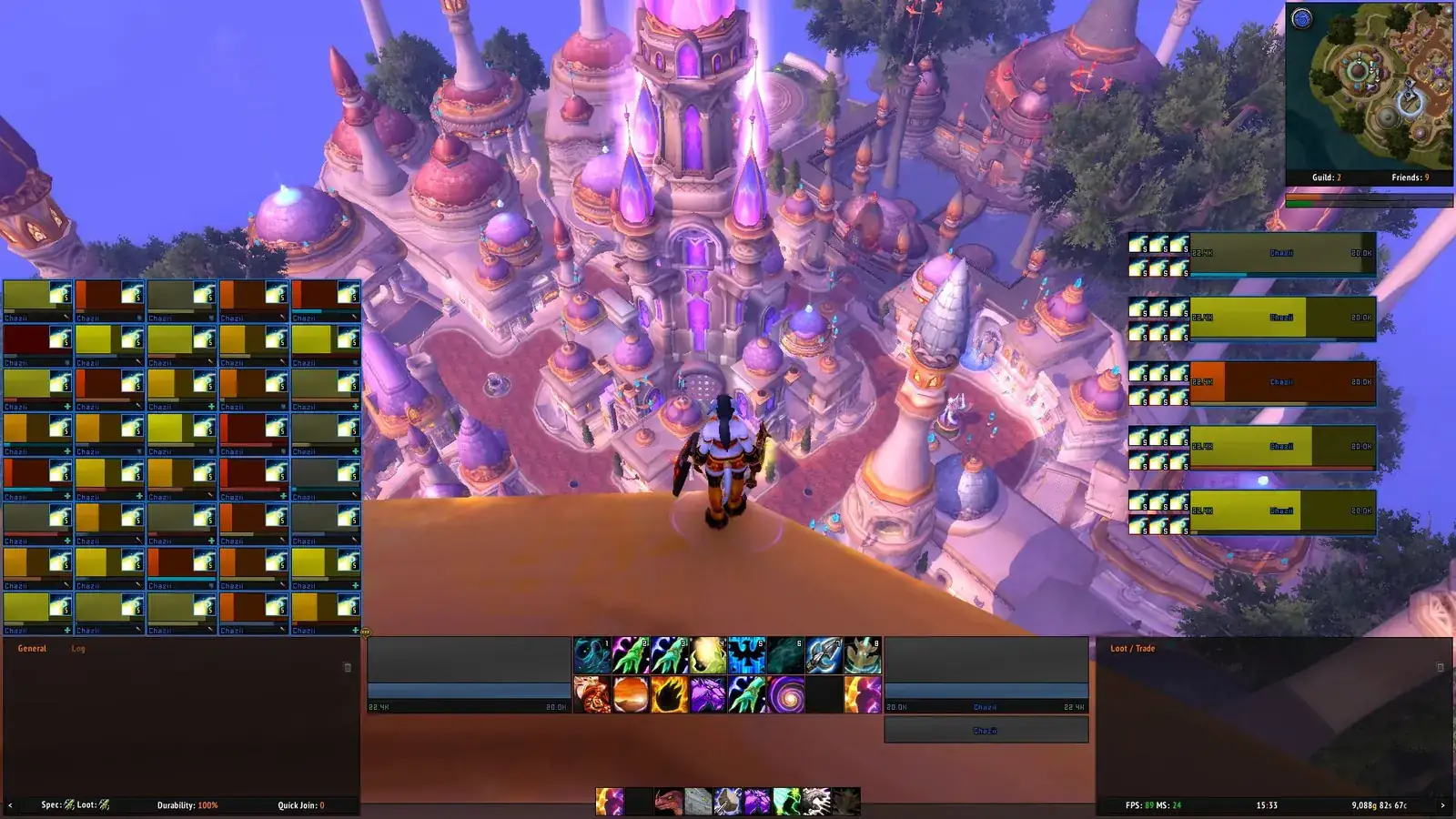
Profiles, Retail and Classic differences
A profile stores configuration, not every font, texture or optional chat addon shown in a screenshot. Before importing one, export the current profile and note the client branch, resolution and required media. If the imported chat is too large or disappears, switch back to the saved profile first; a full reset should be the last step, not the first.
Retail and Classic share the basic /ec and Movers workflow, but available chat modules, Edit Mode interactions, protected frames and message behavior can differ. Test the client you actually launch and keep separate profiles when the layouts serve different resolutions or game branches. ElvUI 15.26 is the current release checked for this guide; a later client patch can change a label or visibility rule without changing the troubleshooting logic.
- Back up the working profile before changing chat anchors.
- Record the client branch and resolution beside a profile export.
- Test optional chat skins after base ElvUI works.
- Do not call a profile a complete addon package when it needs separate media or plugins.
- Use the current Tukui release for the active client and keep historical tags separate.
ElvUI Chat FAQ
How do I open ElvUI chat settings?
Type /ec, open the Chat module and select the window or tab you want to change. Use Movers for position, then test a real message before changing other panels.
How do I move an ElvUI chat window?
Open Movers from the ElvUI configuration, locate the anchor for the correct chat window and drag it. If the anchor is missing, enable a window and show one tab first.
How do I remove the right chat in ElvUI?
Identify whether the right panel is a second ElvUI window, a combat log, Blizzard chat or another addon. Hide that owner in its own settings, reload and confirm the main chat remains.
Why does my ElvUI chat keep moving after reload?
An imported profile, mover reset, Edit Mode change or competing addon may be writing the position. Test a temporary profile and disable one competing source at a time.
Why is ElvUI chat not working in instances?
Check combat or instance visibility rules, message routing and the selected tab. Send a party message and simplify the filter before replacing addon folders.
How do I change ElvUI chat font size or bubbles?
Change the selected chat window's font and spacing separately from bubble scale. Test one tab and one visible message so you can tell which control changed the result.
Can a profile install chat fonts and skins?
No. A profile stores settings. Fonts, textures and optional chat skins may be separate dependencies, so test base ElvUI before enabling them.
Do ElvUI chat settings work on Classic?
The /ec and Movers concepts are similar, but menu labels, protected frames and available fields can differ. Test the active Classic branch and keep a separate profile when needed.
Sources and current-version boundary
The current release context was checked on October 8, 2026 against the Tukui ElvUI API and the public v15.26 release tag. ElvUI 15.26 was released on August 29, 2026 and lists the supported interfaces 12.1.0, 5.5.4, 1.15.9 and 2.5.6. The stable v15.26 source archive returned HTTP 200 with application/zip; GitHub did not expose a stable Content-Length, so no file size is invented.
The real interface images on this page are repository media used as layout references. The chat-specific illustration is a generated editorial concept image with no text; it is not an official screenshot and should not be used to infer an exact menu label.