
The short answer: reproduce, isolate, then change one thing
For an elvui troubleshooting problem, do not begin by deleting the entire Interface or WTF folder. First write down exactly what is wrong: a panel is missing, a Lua error appears, a profile import changes nothing, or a display is duplicated. Reload once, reproduce the same symptom and note which character, profile and WoW branch are active. A precise symptom gives you a test that can pass or fail.
Next, identify the layer that owns the visible result. The three core folders ElvUI, ElvUI_Libraries and ElvUI_Options are addon code. Profile and character settings live under the WTF directory. A module such as Nameplates, Chat or Aura Filters can be disabled inside ElvUI while the addon itself is installed correctly. Changing the wrong layer creates noise and makes a later rollback harder.
Keep a working baseline. Export the current ElvUI profile, copy the relevant WTF folder and record your installed release before testing. The profile guide explains safe exports, while the addons guide helps you check folder depth and optional plugins. A backup turns a risky reset into a controlled experiment.
- Test one visible symptom at a time.
- Keep Retail, Classic and archived clients in separate notes.
- Disable optional plugins before blaming the base package.
- Export a profile before importing another layout.
- Keep the original folders until the clean test passes.
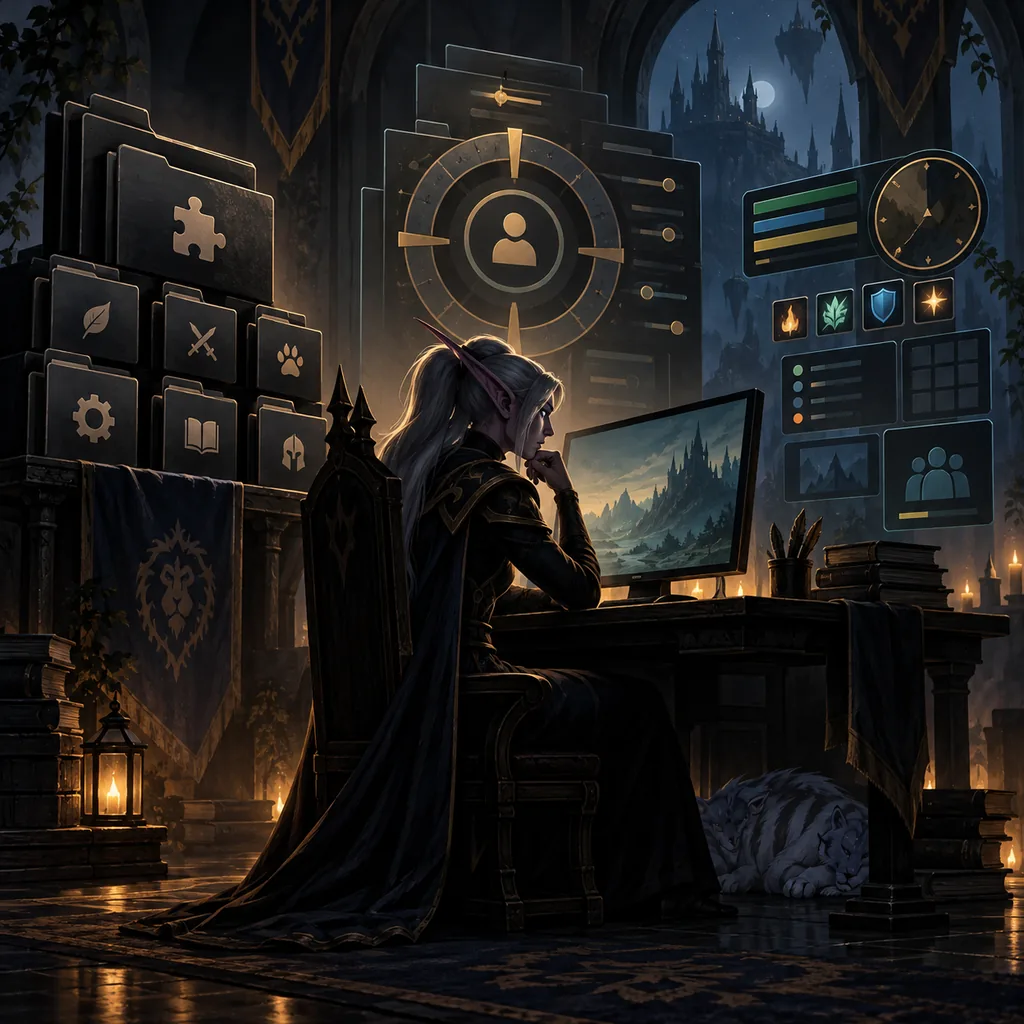
ElvUI troubleshooting: classify the symptom before opening a fix
A practical elvui troubleshooting map keeps the first test small and reversible.
A missing interface and a Lua error can appear together without sharing a cause. Check whether the character-selection AddOns list shows all three core folders, whether /ec opens, and whether the symptom appears on a clean profile. If the options panel opens but one display is absent, the issue is probably module visibility, profile scope or a filter. If the panel itself fails, start with files, dependencies and the active client folder.
After an update, compare the installed ElvUI release with the official Tukui page and the public tag. The current context verified v15.26 on August 29, 2026. A game interface number and an ElvUI release number are different values, so do not treat a WoW patch such as 12.1.0 as an addon version. The update workflow covers a clean replacement that preserves WTF.
Use this quick map to choose the smallest next test. It is a decision aid, not a promise that every client branch uses the same menu label.
| Symptom | Likely owner | First safe check |
|---|---|---|
| ElvUI is missing from the AddOns list | Wrong client path, nested ZIP folder, or incomplete folders | Open the active client folder and confirm the three core directories are directly in Interface/AddOns. |
| /ec opens but one panel is gone | Module disabled, profile scope, or visibility rule | Switch to a copied profile and enable only the affected module. |
| Lua error appears after an update | Mixed files, optional plugin, or changed client API | Close WoW, clean-replace the three core folders, then test without optional plugins. |
| Imported profile changes nothing | Wrong profile, branch, or import text | Confirm the active profile and test a small exported string before a full layout. |
| Two copies of an aura or bar appear | Two display owners or overlapping filters | Disable one display source and compare the remaining position. |
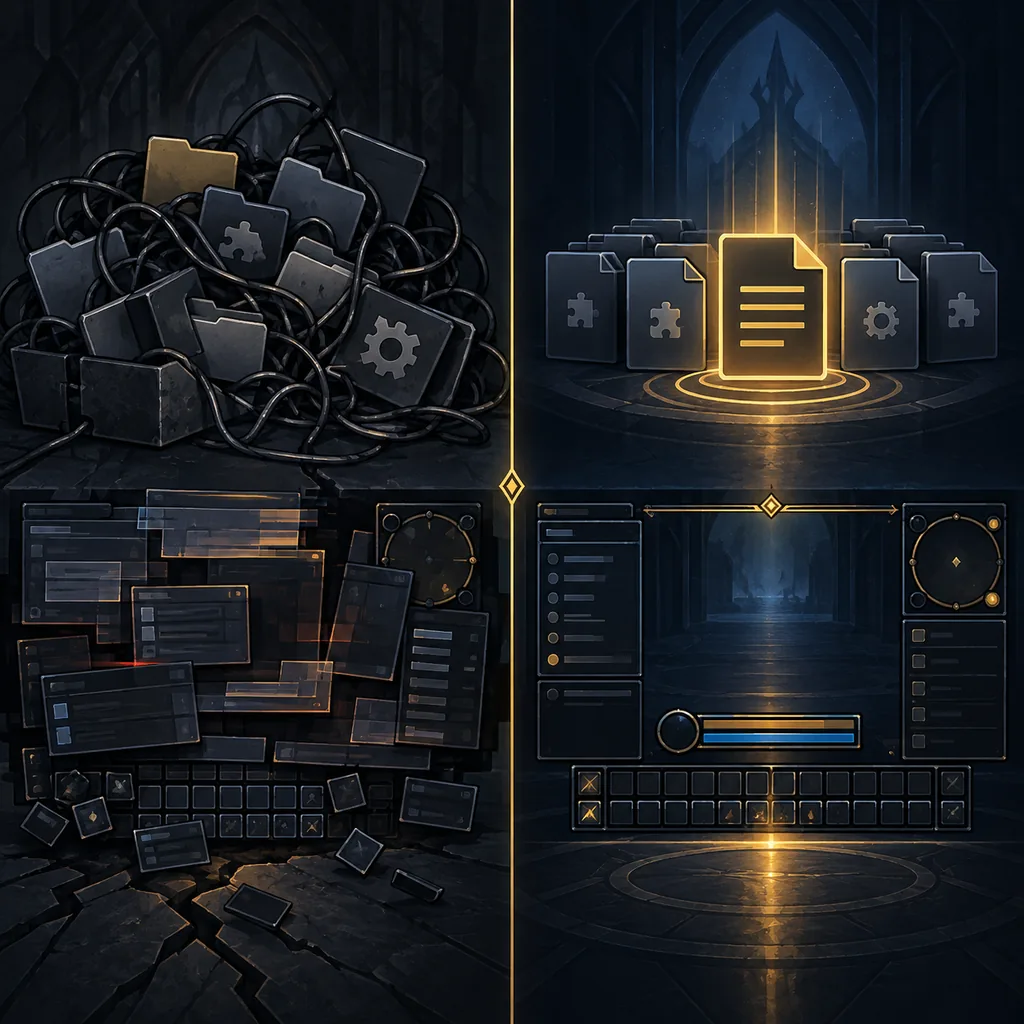
Use an ElvUI troubleshooting workflow with five clean steps
This ElvUI troubleshooting workflow is repeatable across supported branches.
The most useful ElvUI troubleshooting workflow is repeatable. It should tell you whether the symptom comes from the current files, a profile, another addon or a branch-specific API. Do the test outside combat when possible, and take a screenshot or short note before each change. Avoid making several settings changes between reloads because you will not know which one mattered.
- 1
Record the environment
Write down the WoW branch, character, ElvUI release, active profile, recent update and the exact visible symptom. Note whether the issue appears only in combat, after a reload or on every character.
- 2
Confirm the active files
Close WoW and open the folder launched by Battle.net. Inside Interface/AddOns, confirm ElvUI, ElvUI_Libraries and ElvUI_Options are at the correct depth and came from one release.
- 3
Test the base package
Disable optional ElvUI plugins and unrelated addons, start the game, type /ec and check the affected module on a temporary profile. Do not import a community layout during this test.
- 4
Change one owner setting
Enable the module, simplify its filter or restore one default display setting. Reload and reproduce the original symptom with the same unit, target or chat channel.
- 5
Restore and add back gradually
If the base test works, restore your exported profile and add plugins one by one. If it fails, keep the clean evidence and follow the file, client or official-support path instead of deleting backups.
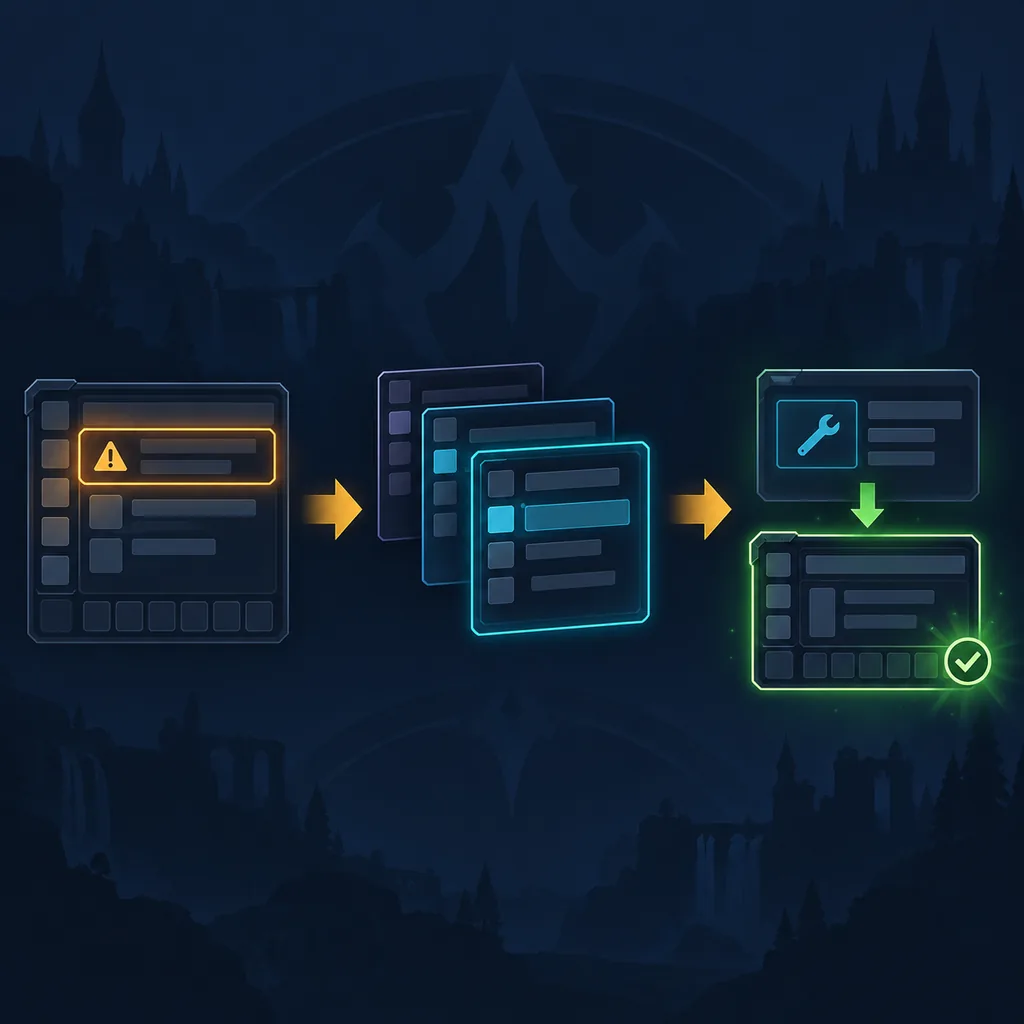
Fix common ElvUI troubleshooting patterns for missing UI and Lua errors
Use this ElvUI troubleshooting checklist before changing a profile or downloading another archive.
If ElvUI does not appear after download, inspect directory depth before changing settings. A GitHub archive can contain an outer folder such as ElvUI-15.26; WoW needs the actual addon folders one level below AddOns. Make sure the active client is the same Retail or Classic branch you edited. The installation guide shows the expected path and the three-folder check.
For a Lua error that starts immediately after an update, close the game and clean-replace only the three core ElvUI folders. Do not merge an old folder over a new one, because removed modules can remain and load together. Test with optional plugins disabled. If the error remains on a new profile, capture the first lines of the error and compare the client branch before trying a historical tag.
When a panel is missing but the options window works, check the module's enable switch, profile scope and visibility conditions. Nameplates, Chat, Cast Bar and Aura Filters have separate pages on this site because their owners differ. Use the Nameplates guide, Chat guide or Aura Filters guide rather than changing unrelated UnitFrames settings.
A layout reset is often a profile or scale issue, not a lost installation. Restore the exported profile, check UI scale and resolution, then move one frame and reload. If the frame moves back, note whether a global, character or class profile owns it. Never overwrite the only working export while experimenting.
| What you see | Do this first | Avoid |
|---|---|---|
| Addon absent | Check active client path and folder depth | Downloading a second unverified ZIP |
| Lua error after update | Clean-replace core folders and disable plugins | Merging releases or deleting WTF |
| Panel hidden | Check module enablement and profile scope | Resetting every module at once |
| Import has no effect | Verify profile, branch and import target | Pasting the same string repeatedly |
| Duplicate icons | Identify the display owner and active filters | Assuming every duplicate is a file error |
Handle ElvUI troubleshooting across profiles, updates, and Classic branches
Good ElvUI troubleshooting keeps profile data and addon code as separate rollback layers.
- Back up WTF before every major version change.
- Keep addon code and profile data as separate rollback layers.
- Record the client branch beside every exported profile.
- Use the official Tukui page or public repository for version checks.
- Treat an old tag as a test artifact, not a permanent compatibility promise.
Know when to stop an ElvUI troubleshooting reset and ask for evidence
When ElvUI troubleshooting reaches a clean reproduction, preserve the evidence instead of resetting again.
Repeated resets rarely fix an error that is caused by the wrong client folder, a companion addon or a changed game API. Stop when the same symptom survives a clean core-package test on a temporary profile. At that point, preserve the error text, client branch, ElvUI release and first reproducible action. Those details are more useful to official support or a repository issue than a description such as “my UI is broken.”
- Keep the first Lua error line and timestamp.
- Include the WoW branch and ElvUI version in a support report.
- Mention optional plugins and imported profiles explicitly.
ElvUI Troubleshooting FAQ
What is the safest first step for ElvUI troubleshooting?
Write down one reproducible symptom, confirm the active profile and branch, and back up WTF before changing a setting. Then isolate the display or addon layer that owns the result.
Why is ElvUI not showing in World of Warcraft?
Check the active client folder, ZIP directory depth and the three core folders: ElvUI, ElvUI_Libraries and ElvUI_Options. Then open the AddOns list and confirm you edited the Retail or Classic client that Battle.net launches.
How do I fix an ElvUI Lua error after an update?
Back up WTF, close WoW, clean-replace the three core folders from one verified release and disable optional plugins. Test /ec on a temporary profile before restoring imported layouts. If the error remains, record the first error line and client branch.
Why does my ElvUI profile import do nothing?
The active profile, client branch or import target may be wrong. Confirm the profile name, test a small export and make sure the string came from a compatible release. Do not paste the same string repeatedly without changing the test.
Can I delete WTF to repair ElvUI?
Treat deletion as a last resort. WTF contains profiles and saved variables. Copy it first, create a temporary profile and test the core addon so you can identify the real owner of the problem.
Why are ElvUI auras or bars duplicated?
Two display owners or overlapping filters may be active. Identify whether the copies come from a unit frame, nameplate or companion addon, disable one source for a controlled test and keep only the intended display.