
The short answer: use ActionBars and Movers
ElvUI action bars are controlled from the ActionBars module, while their screen position is controlled by Movers. Type /ec, open the ActionBars settings, confirm that the bar you want is enabled, then open Movers and drag that bar's anchor. Exit Movers before judging the final position because the temporary mover labels can make the layout look different from normal play.
Choose the exact bar before changing anything. Bar 1, Bar 2, the pet bar, stance or form bars and the micro menu can have separate visibility, button and profile settings. If you move the wrong anchor, the bar may appear unchanged even though ElvUI saved a different position. A profile export or a copy of your WTF folder gives you a rollback point before you experiment.
- Use
/ecto open ElvUI configuration. - Open ActionBars and identify the bar number or special bar you are testing.
- Use Movers to drag the matching anchor, not a similar-looking frame.
- Leave combat before dragging and reload only when ElvUI asks for it.
- Export the profile before a large layout change or profile import.
Where to find the ElvUI action-bar settings
Start at ActionBars in the ElvUI options. The exact subheadings can differ between Retail and Classic branches, but the useful groups are usually the bar enable switch, button count, button size, spacing, paging, visibility and mouseover behavior. Open one bar at a time and note its number before changing the setting. This prevents a common mistake where Bar 2 is edited while the player is looking at Bar 1.
The ActionBars module changes how buttons are arranged; Movers changes where the complete bar sits. Do not use a profile import just to move one bar. A profile can also replace colors, paging, visibility rules, font choices and unrelated frames. If the settings panel is missing, first follow the site's installation guide and verify that ElvUI, ElvUI_Libraries and ElvUI_Options came from the same release.
- Bar enable: confirms whether the bar can appear at all.
- Buttons per row or column: controls the shape of the bar.
- Button size and spacing: controls readability and footprint.
- Visibility and mouseover: controls when the bar is shown.
- Paging and form rules: controls which page appears for a stance or form.
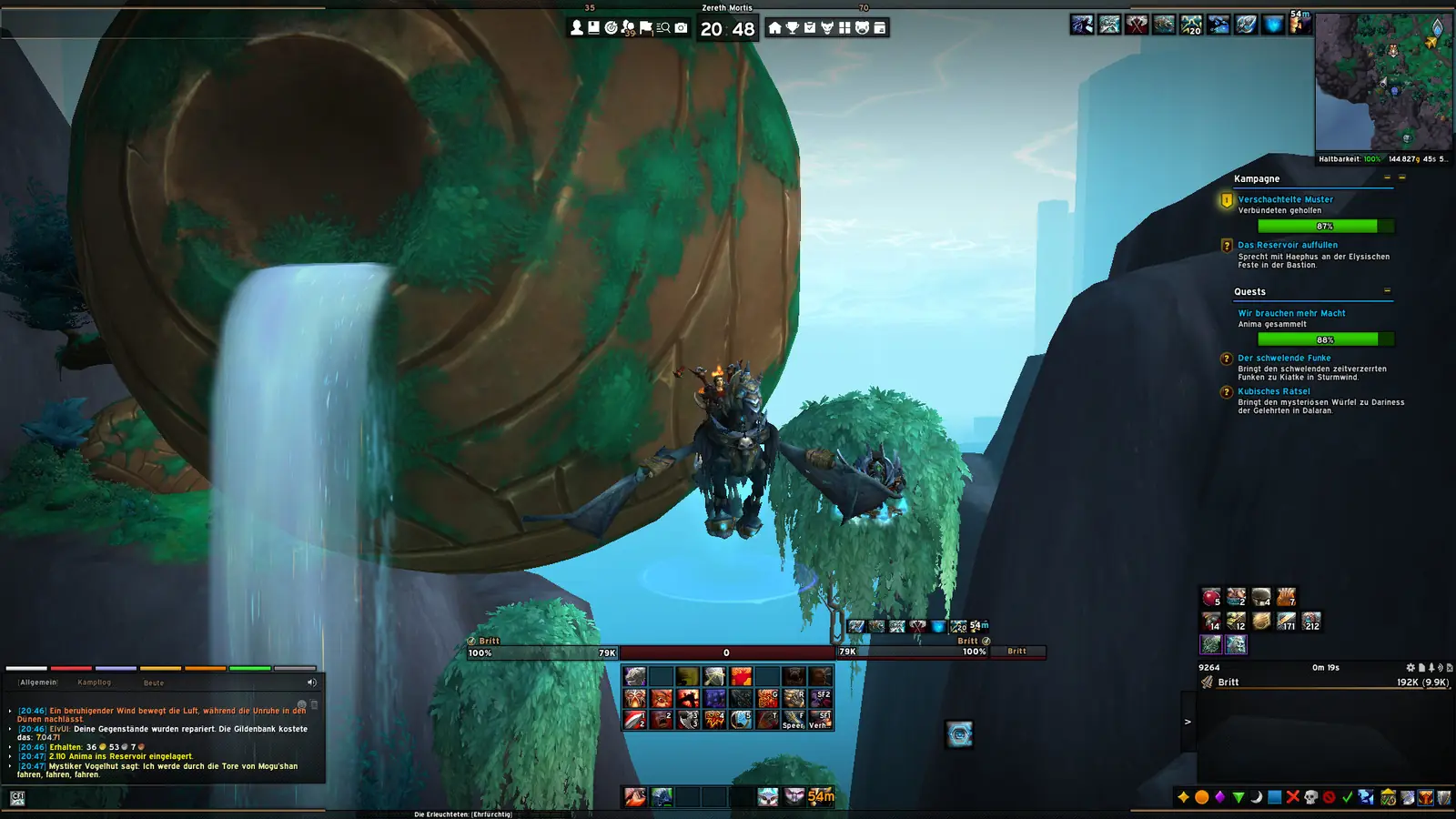
How to move, resize, and align a bar
A good action-bar position is readable without covering the player frame, castbar, chat or important combat text. Start with the bar near the place where your eyes already go during combat. Then adjust button size and spacing so the bar remains usable at your normal camera distance. A screenshot from another resolution is only a starting point: a 1440p profile can look crowded at 1080p, while an ultrawide layout can leave buttons too far from the center.
Move one bar and test it before moving the next. If a profile has several action bars anchored together, dragging one group may move more than the visible row. When that happens, check the Movers labels and reset only the affected anchor instead of resetting the full profile.
- 1
Leave combat and open configuration
Type
/ecand wait for the ElvUI options panel to finish loading. Keep the character in a safe place while testing. - 2
Confirm the bar is enabled
Open ActionBars, select the bar number and check its enable, visibility and mouseover settings before moving it.
- 3
Open Movers
Use the Movers control, find the matching action-bar anchor and drag it. If two labels overlap, hide unrelated movers temporarily or move one group at a time.
- 4
Tune shape and spacing
Return to the bar settings and adjust buttons per row, button size, spacing and orientation. Change one variable at a time.
- 5
Test and export
Cast, change targets, enter a low-risk combat test and check the bar on your normal screen. Export the working profile before further changes.
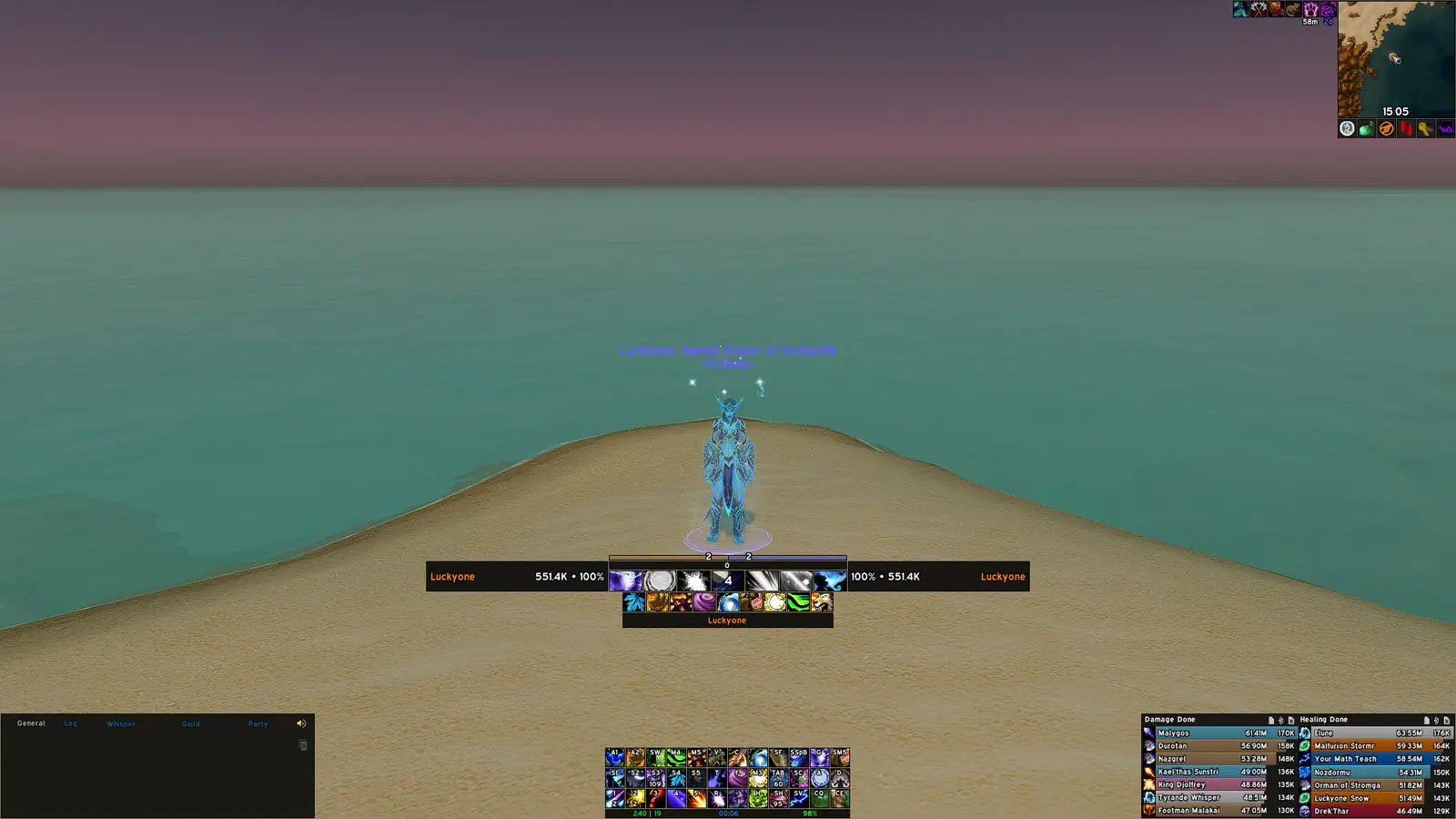
How to add more bars, hide a bar, or change its shape
When a player asks how to add more action bars in ElvUI, the usual solution is to enable another bar in ActionBars and then choose its button count and placement. A new bar may be enabled but appear empty, outside the visible area or only when a visibility condition is true. Check the bar's enable switch, button count, mouseover rule and anchor in that order.
Hiding a bar is usually safer through its own visibility or mouseover setting than by deleting profile data. If you want a clean screen while keeping emergency buttons available, use a conditional rule or mouseover behavior and test it outside combat. Remember that a hidden bar can still hold keybinds, so do not remove it until you know whether another bar or paging rule depends on it.
Form and stance bars need an extra check. A druid, rogue, warrior or other class may change pages or visibility when a form, stance or stealth state changes. Make the default bar work first, then test each state in a safe area. The page should not claim that every class uses the same form rules; the active ElvUI profile and client branch determine the available behavior.
| Symptom | Likely cause | First check |
|---|---|---|
| A new bar is not visible | The bar is disabled, off-screen or mouseover-only | Enable it, check visibility and reset only its mover anchor |
| The bar has no buttons | Button count is zero or the wrong bar was edited | Select the bar number and set a visible button count |
| Buttons disappear in stealth or a form | Paging or visibility rules changed | Test the active state and review the form/stance rule |
| The screen becomes crowded | Button size, spacing or a copied profile is too large | Reduce one setting or import into a separate profile |
| A hidden bar still works for keybinds | Visibility does not remove bindings | Keep the bar if the keybinds are still needed |
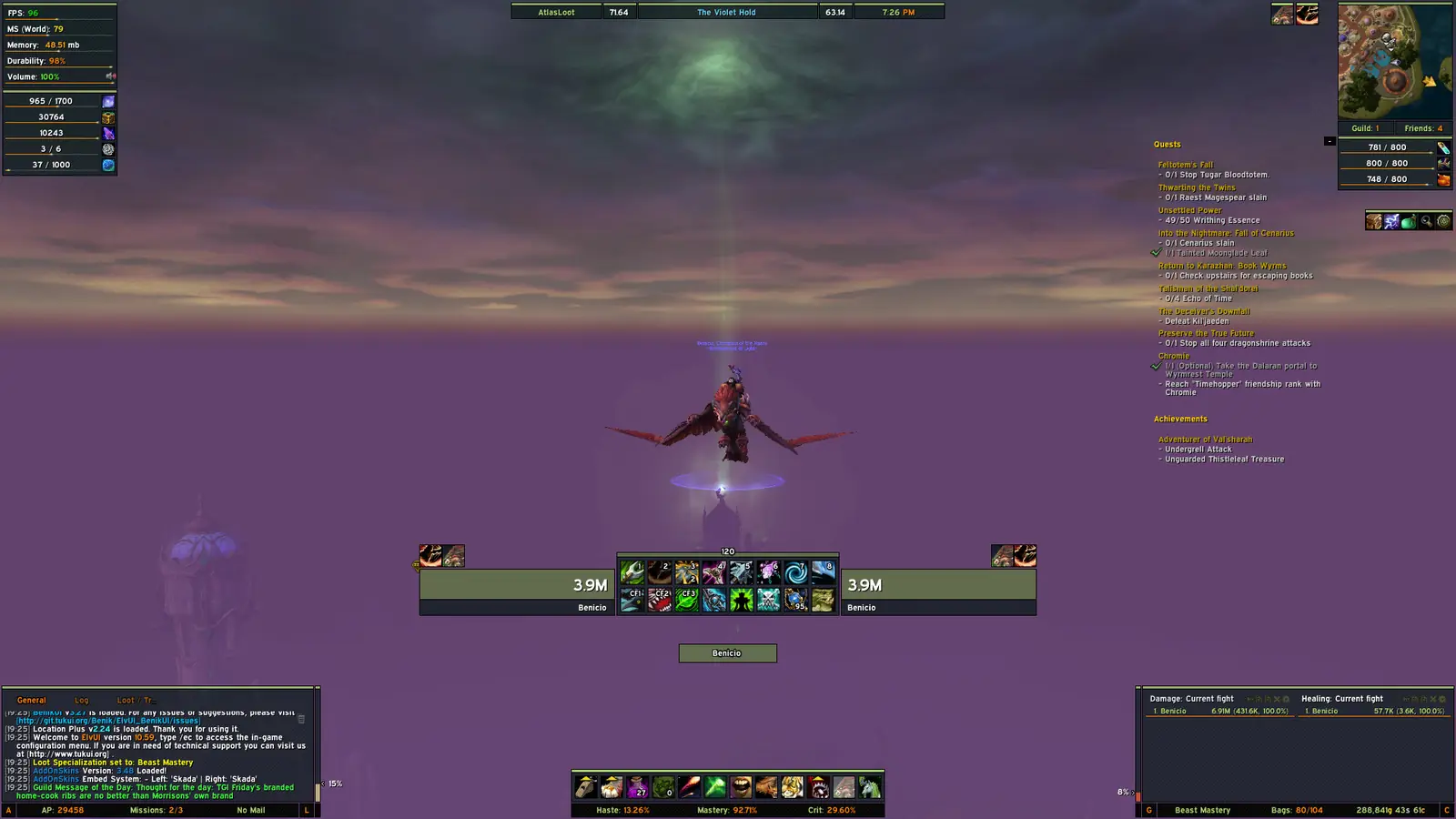
Fix bars that copy, freeze, or fail to swap
If action bars copy each other, first check whether the bars share a profile, paging rule or visibility condition. A profile import can make several bars look identical without damaging the addon. Compare the bar number, button count, page settings and active state before deleting saved variables. If only one class or form is wrong, test a temporary profile to separate a profile setting from a code or plugin problem.
A bar that does not move may be outside the viewport, locked by combat, hidden by a condition or attached to a different mover group. A bar that does not swap can be using the wrong page or a form rule that is not active for the current class. Reload after a clear setting change, but do not repeatedly reload while the underlying bar is disabled.
Mixed addon folders are another common cause. Replace the three core ElvUI folders from one verified release instead of merging an old ActionBars module with a new ElvUI interface. For companion-addon conflicts, follow the site's ElvUI addons guide and disable the newest optional project first.
| Problem | What it usually means | Safe next step |
|---|---|---|
| Bars copy each other's layout | Shared paging, profile import or same button settings | Compare bar number and page rules in a temporary profile |
| Bar does not move | Wrong mover, combat lock or off-screen anchor | Leave combat, select the matching mover and reset only that anchor |
| Bar does not swap in a form | Form/stance condition or page rule is not active | Test the exact state and inspect that bar's paging rule |
| Buttons freeze after an update | Mixed folders, skin or optional plugin conflict | Test base ElvUI with one clean verified release |
| Old profile looks different | Resolution, scale, media or addon dependencies changed | Restore the backup or adjust the layout around the current release |
Profiles, client branches, and version boundaries
An ElvUI profile stores configuration; it does not install missing fonts, media packs, WeakAuras or third-party addons. The site's profile guide explains how to export before testing and why a community screenshot can look different even when the import succeeds. Create a separate profile for a large layout experiment so your working action bars remain available.
Retail and Classic branches can expose different modules, paging behavior and client paths. Test the client you actually launch and do not treat an old action-bar screenshot as proof that the current menu has the same label. The current ElvUI freshness check on October 8, 2026 found v15.26 as the highest visible official API version; the public v15.26 tag commit is dated August 29, 2026. The stable tag ZIP returned HTTP 200 with an application/zip response, but no stable Content-Length was exposed, so this page does not invent a file size or call a mirror official.
For a clean update, use the verified current source and keep WTF until the new action bars have been tested. The ElvUI update guide covers the folder replacement sequence. If the problem is only a layout choice, adjust the profile first instead of downgrading the addon.
- Export before importing a profile or moving several bars.
- Keep Retail and Classic profiles separate when their layouts differ.
- Replace matching addon folders instead of mixing releases.
- Treat screenshots, profile strings and third-party packs as community configuration, not as official ElvUI downloads.
- Return to the current verified source after testing a historical setup.
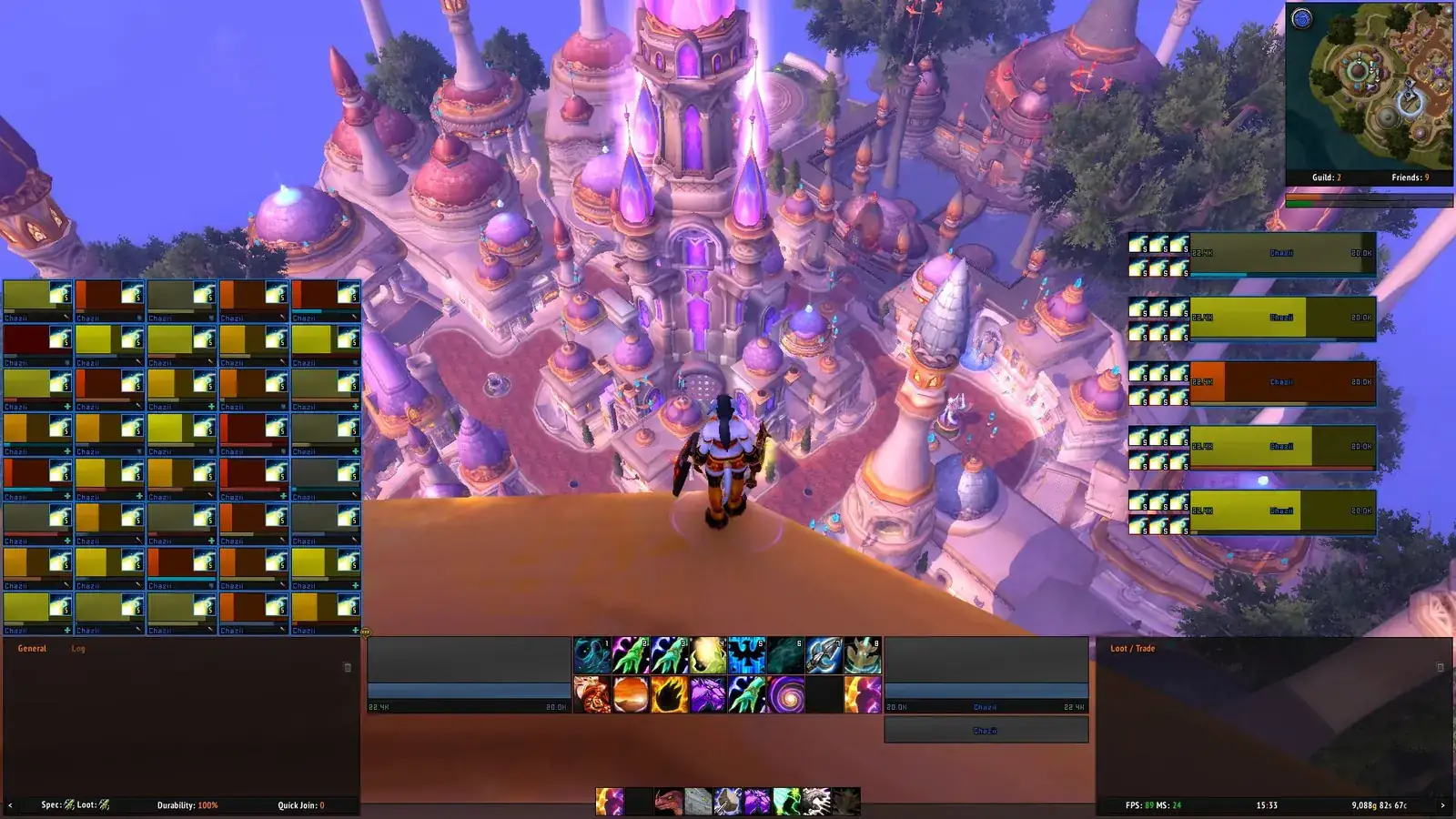
ElvUI Action Bars FAQ
How do I move action bars in ElvUI?
Type /ec, confirm the bar is enabled under ActionBars, open Movers, select the matching action-bar anchor and drag it. Leave combat before moving it and export the profile after the layout works.
How do I add more action bars in ElvUI?
Enable another bar in ActionBars, give it a visible button count, review its visibility or mouseover rule and place it with Movers. If it is still missing, check whether it is off-screen or only appears in a form or combat state.
Why do my ElvUI action bars keep copying each other?
Check paging, form/stance rules, shared profile settings and the exact bar number. Test a temporary profile before deleting saved variables, because a copied layout is usually a configuration or import issue rather than corrupted data.
Why are my action bars not swapping in different forms?
The bar may use a paging or visibility rule that does not match the active form, stance or stealth state. Test the exact state, review the relevant ActionBars rule and keep a separate profile backup before changing several conditions.
Can I hide an ElvUI action bar without losing keybinds?
Usually, yes. Use the bar's visibility or mouseover behavior instead of deleting it. Hiding the bar does not necessarily remove its keybinds, so keep it when those bindings are still useful and test the state outside combat.
Will importing an ElvUI profile install missing action-bar addons or media?
No. A profile stores configuration, while fonts, textures, WeakAuras and companion addons can be separate requirements. Read the source page, import into a new profile and test base ElvUI before enabling optional projects.
Does this action-bar workflow work on Classic?
The same ActionBars and Movers concepts apply, but the available modules, client folder and form or paging behavior can differ. Test the Classic client you actually use and do not copy a Retail profile blindly.
Sources and version check
The current version context was checked on October 8, 2026 against the Tukui ElvUI API, which returned version 15.26, and the public ElvUI v15.26 tag. The stable v15.26 source archive returned HTTP 200 with an application/zip content type. GitHub did not expose a stable content length in the probe, so no file size is claimed. Recheck these first-party sources before calling a later release current.
This page uses existing ElvUI interface screenshots already stored in the repository. They are contextual real-product media, not generated screenshots of a particular menu state. The exact option labels can vary by client branch, profile and future release; the ActionBars module and matching Movers anchor are the reliable concepts to verify in game.