
The short answer: choose an anchor before changing the style
For the common ElvUI tooltip settings question, do not start by deleting the profile. Type /ec, open Tooltip and decide whether you want the box attached to the mouse or placed at a stable screen position. Then hover one item, spell or unit and change one option at a time. A tooltip can look broken when it is simply behind a frame, outside the visible area, restricted during combat or being drawn by another addon.
Keep Tooltip separate from UnitFrames, Nameplates and Chat. Tooltip controls the information box that appears when you hover; the Unit Frames guide covers health and party panels, while Nameplates covers labels above units. Separating the owner of the display prevents a profile reset from hiding the real cause.
- Use
/ecoutside combat when possible. - Choose Cursor Anchor or a fixed anchor, then test one hover target.
- Move the frame before changing font, border or color.
- Export a working profile before importing a community layout.
- Treat optional tooltip addons as separate owners until base ElvUI works.
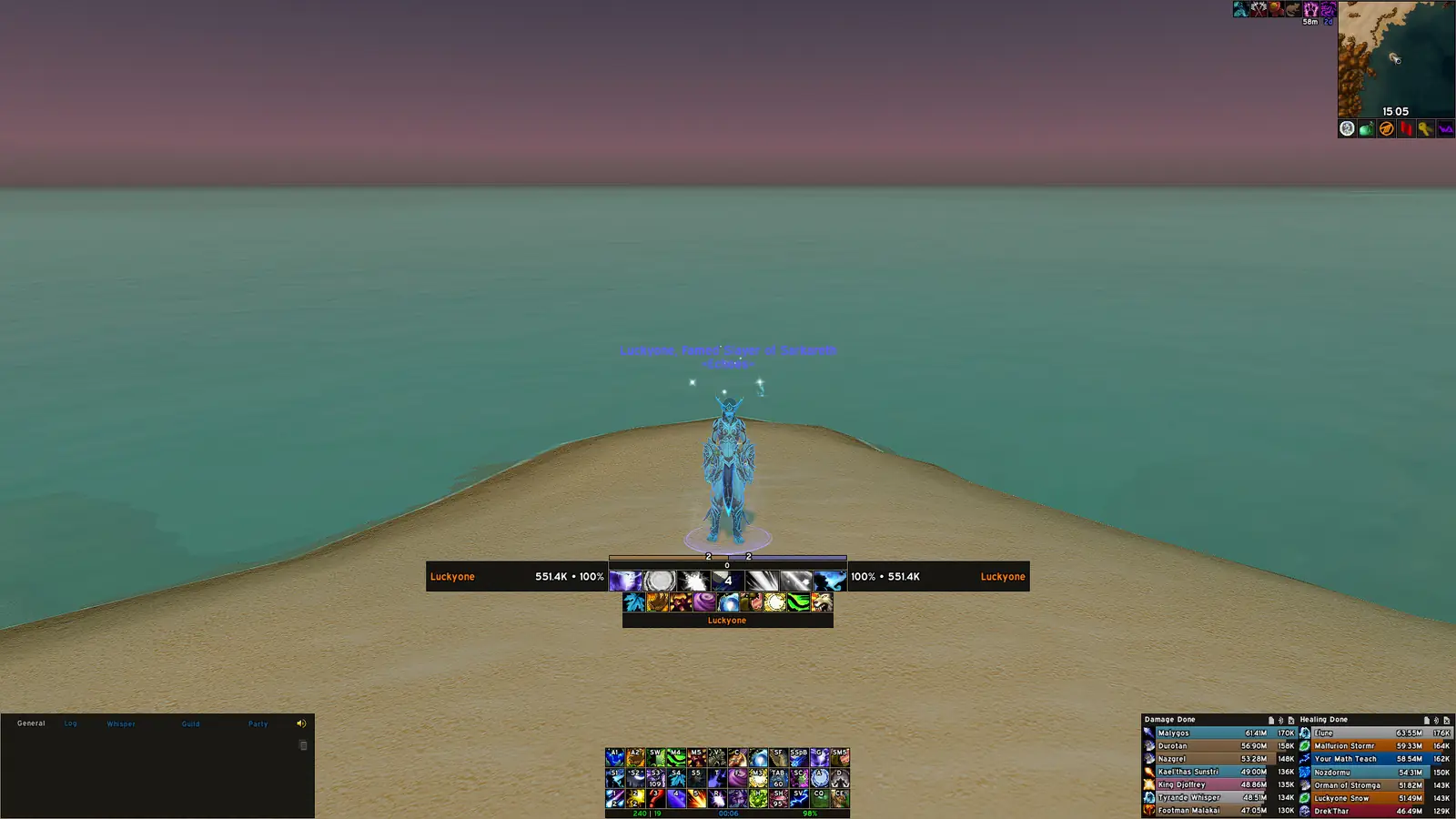
Where to find ElvUI tooltip settings and anchors
Open the configuration with /ec and select Tooltip in the module list. Depending on the client branch, general appearance, item information, unit details, combat visibility and cursor anchoring can be grouped differently. Select the setting that owns the symptom, change it once, and hover the same item or unit again. Repeating the same test keeps a small change understandable.
Cursor Anchor is useful when you want the box to follow the pointer and avoid a fixed corner. A fixed anchor is better when you need a predictable reading zone for raid frames, action bars or a narrow monitor. If the box jumps between two places, check whether Cursor Anchor and an anchor mover are both active, then leave only the behavior you actually want.
- 1
Open the configuration
Type
/ec, wait for the ElvUI window and finish combat before moving several anchors. - 2
Select Tooltip
Choose the Tooltip module rather than UnitFrames or Nameplates, then note the setting group that matches the symptom.
- 3
Pick one anchor mode
Enable Cursor Anchor for pointer-following behavior or keep a fixed anchor for a stable reading area.
- 4
Test a known target
Hover one bag item, spell or unit and confirm the box appears before adjusting fonts or borders.
- 5
Save the working state
Export the profile or keep a dated WTF backup before adding a tooltip extension or importing a new layout.
Move, resize, or hide an ElvUI tooltip safely
To move an ElvUI tooltip, change the anchor first and the scale second. A large box often feels misplaced when its font, padding or item lines are too wide for the chosen area. Test the same long item name after each change. Keep enough room for comparison lines, sockets and spell descriptions instead of cropping the right edge to make the panel fit.
To hide an ElvUI tooltip, use the visibility or combat options in Tooltip and confirm the result with a real hover. Hiding every tooltip can remove useful item comparison or unit information, so prefer a combat-only rule when the goal is a cleaner raid screen. If a tooltip still appears, identify whether it belongs to Blizzard, a bag addon or an enhanced cursor-tooltip plugin.
| Goal | First setting | Safe check |
|---|---|---|
| Follow the pointer | Cursor Anchor | Hover a bag item and move the mouse across the screen |
| Keep a fixed reading zone | Tooltip anchor or Movers | Reload and verify the same corner remains clear |
| Make long descriptions fit | Width, scale and font size | Test an item with a long name before changing padding |
| Hide during combat | Combat visibility rule | Enter a safe combat test and confirm the box returns afterward |
| Remove a duplicate | Owner of the second tooltip | Disable one source briefly instead of stacking frames |
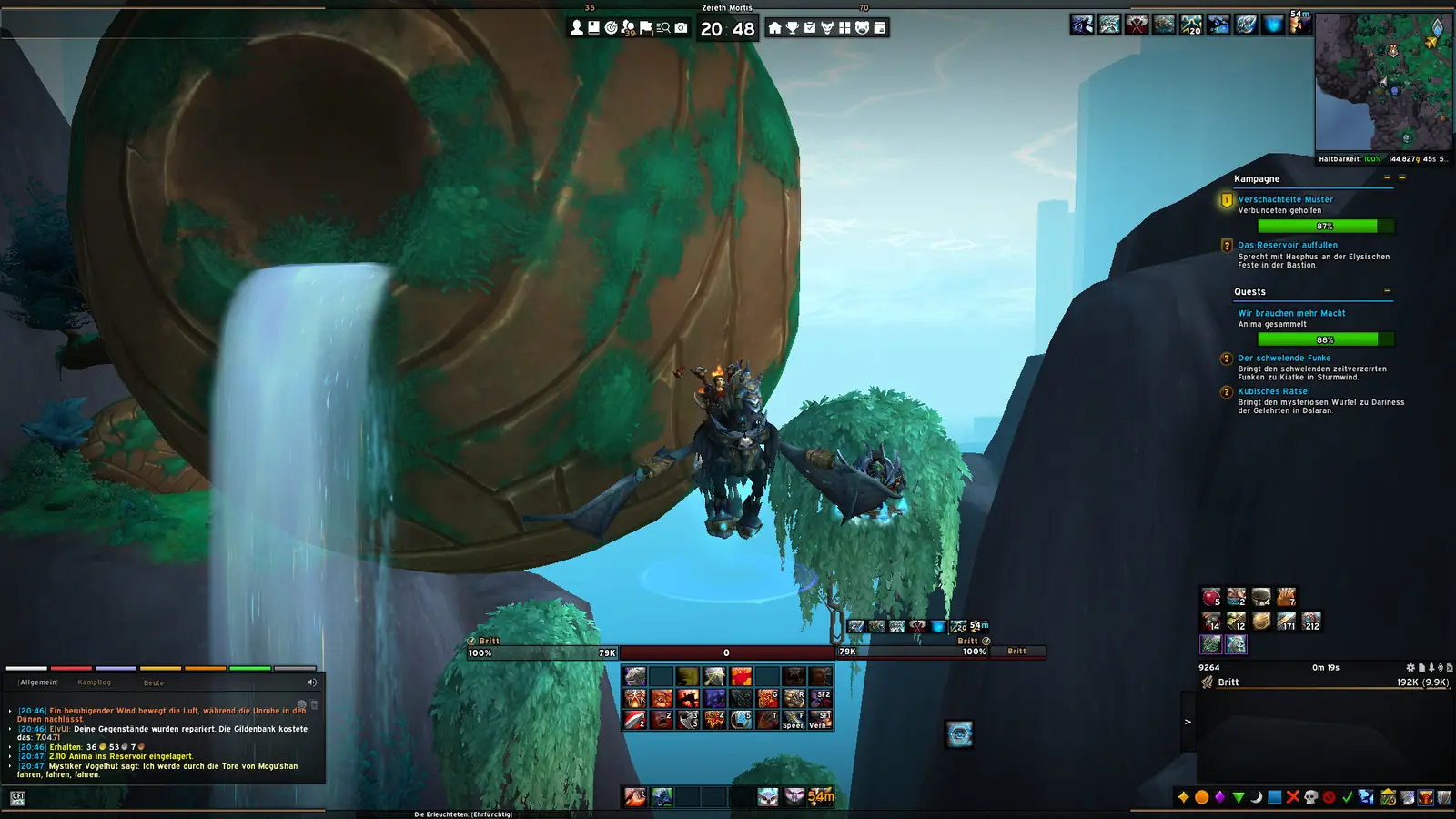
Keep item, spell, and unit information readable
Tooltip readability is more than a font choice. Item level, rarity color, comparison lines, sockets, enchantments and spell text each add width and height. Start with the information you actually use, then adjust line spacing and scale. If a single item becomes unreadable, compare it at the same UI scale before removing fields globally.
Unit tooltips can include class, guild, role or target information. These lines are useful when inspecting a player but can make a compact tooltip feel crowded. Keep the identity lines you need, and use a separate unit-frame page when the missing information belongs inside a persistent frame instead of a hover box.
- Change one information group at a time: item lines, comparison, spell text or unit identity.
- Test both a short name and a long description after changing width or scale.
- Keep color contrast high enough for rarity colors and readable white text.
- Separate hover information from persistent UnitFrames and Nameplates.
- Disable one companion tooltip source when two boxes appear.
Fix a tooltip that is missing, stuck, or wrong in combat
If the ElvUI tooltip is not showing, verify the active profile, Tooltip enablement and the hover target before replacing folders. Hover a bag item, target a friendly player and open the character panel. If only one context fails, the filter or owner for that context is the likely cause. If every context fails, check whether another addon disabled or replaced the frame.
A tooltip that disappears in combat may be following a visibility rule rather than failing. Simplify the combat condition, reload and test one safe encounter. If it returns after combat, the rule is working; decide whether you want the cleaner state or a shorter combat restriction. A stuck tooltip that remains after the target changes can be cleared with a reload after the owner is identified.
| Symptom | Check first | Reversible next test |
|---|---|---|
| No tooltip appears anywhere | Profile, module enablement and competing addon | Test a clean temporary profile with ElvUI alone |
| Only bag items fail | Bag addon owner or item filter | Disable the bag addon for one reload |
| Only unit tooltips fail | Unit context and identity lines | Hover a friendly player and compare target types |
| Tooltip vanishes in combat | Combat visibility rule | Simplify the rule and test a safe encounter |
| Two tooltips overlap | Blizzard and companion addon sources | Disable one source and keep the intended owner |
| Position resets after reload | Profile import, Movers or UI scale | Export the working profile and test a fresh profile |
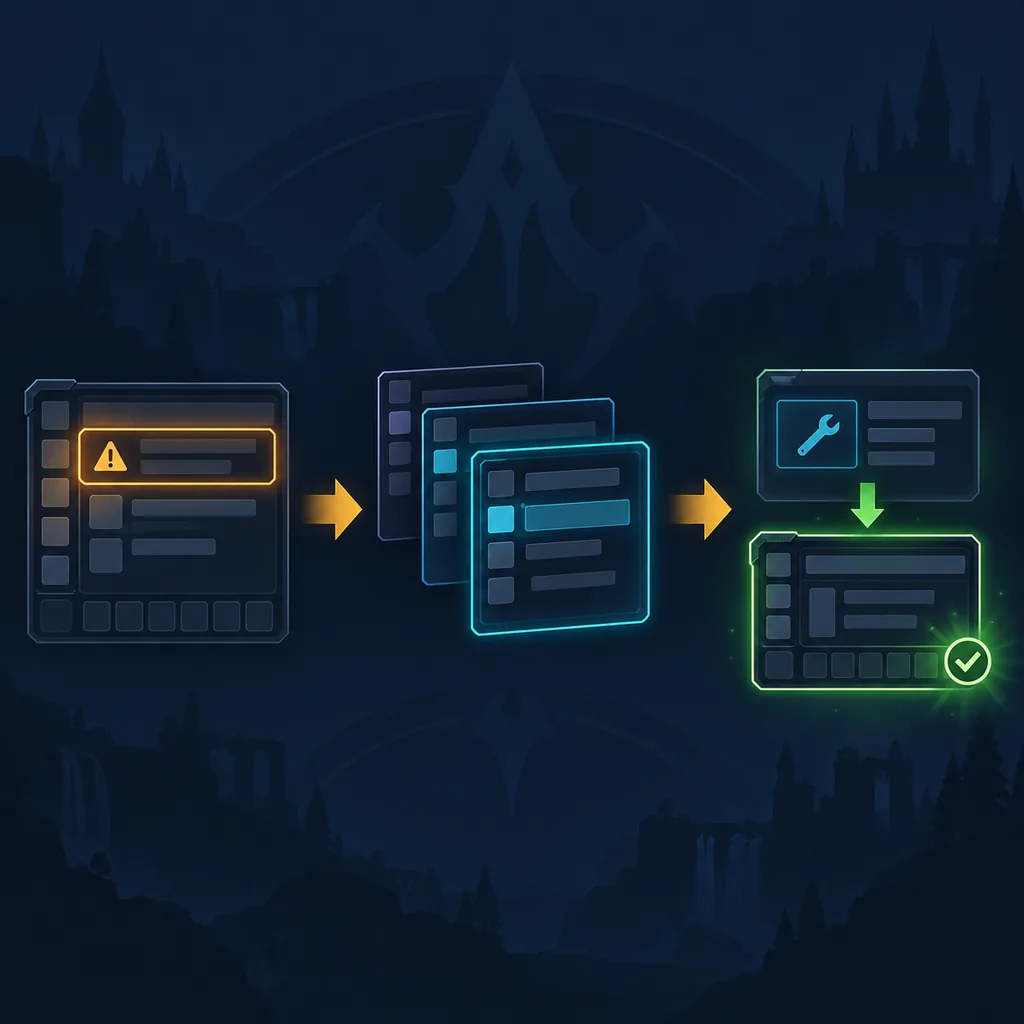
Profiles, Retail, Classic, and the limits of a screenshot
A profile stores settings, not every font, texture or optional tooltip extension shown in a community screenshot. Export your working profile before importing a layout and note the client branch, resolution and UI scale. If the imported tooltip is too large or missing, return to the saved profile first; a full reset should be the last step.
Retail and Classic share the /ec and anchor concepts, but protected frames, menu labels and available fields can differ. Test the client you actually launch and keep separate profiles when the screen size or branch changes. The page does not promise that a historical label exists in every current build; use the task path and verify the matching control in your client.
- Back up WTF and export the profile before a broad change.
- Record client branch, resolution and UI scale beside each export.
- Treat fonts, textures and tooltip plugins as separate dependencies.
- Use the active Retail or Classic client path when testing.
- Keep an old working profile until the new anchor survives a reload.
ElvUI Tooltip FAQ
How do I open ElvUI tooltip settings?
Type <code>/ec</code>, open the Tooltip module and choose the anchor or visibility group that matches the symptom. Hover the same item or unit after each change.
How do I move an ElvUI tooltip?
Choose Cursor Anchor for pointer-following behavior or use the Tooltip anchor and Movers for a fixed position. Test a long item name before changing scale.
How do I hide ElvUI tooltips in combat?
Use the Tooltip combat visibility option, simplify the rule and test one safe encounter. Avoid hiding every tooltip if you still need item comparisons outside combat.
Why is my ElvUI tooltip not showing?
Check the active profile, module enablement and the hover context. Test a bag item and a friendly player, then disable one competing tooltip addon for a reload.
Why do I see two ElvUI tooltips?
Blizzard, ElvUI and a companion addon may each own a tooltip. Disable one source briefly, reload and keep the owner whose anchor and information you want.
Can I make an ElvUI tooltip wider?
Adjust width, scale and font separately. Test a long description and keep enough room for comparison lines rather than cropping the panel.
Does a profile include tooltip fonts and plugins?
A profile stores settings, but fonts, textures and optional tooltip plugins can be separate dependencies. Test base ElvUI before adding them.
Do these tooltip settings work on Classic?
The /ec and anchor workflow is similar, but labels and available fields can differ by client branch. Test the active Classic build and keep a separate profile when needed.
Sources and scope
The page structure was checked against the Icy Veins ElvUI guide, which documents /ec, module-by-module configuration and the need to test a real client state. That guide is historical and is used for structure and vocabulary, not for current release claims or exact menu labels.
This article is a configuration guide, not a latest-version download page. It does not claim a current release number, file size or permanent compatibility. For source checks and clean installation, use the site's installation guide and the official Tukui route linked there.