
The short answer: ElvUI unit frames are not Nameplates
UnitFrames are the status boxes for your character, target, focus, pet, party, or raid. Nameplates float above units in the world. Change the health box beside your character under UnitFrames; use the separate ElvUI Nameplates guide for a label above an enemy.
Player, Target, Focus, Pet, Party, and Raid have separate display settings. Select the visible frame first; a similar control on another group will not change the box you are testing.
- Use
/ecto open ElvUI options. - Select one frame group before changing a setting.
- Test with the unit or group that should display the frame.
- Keep profile imports and floating Nameplates separate from UnitFrames.
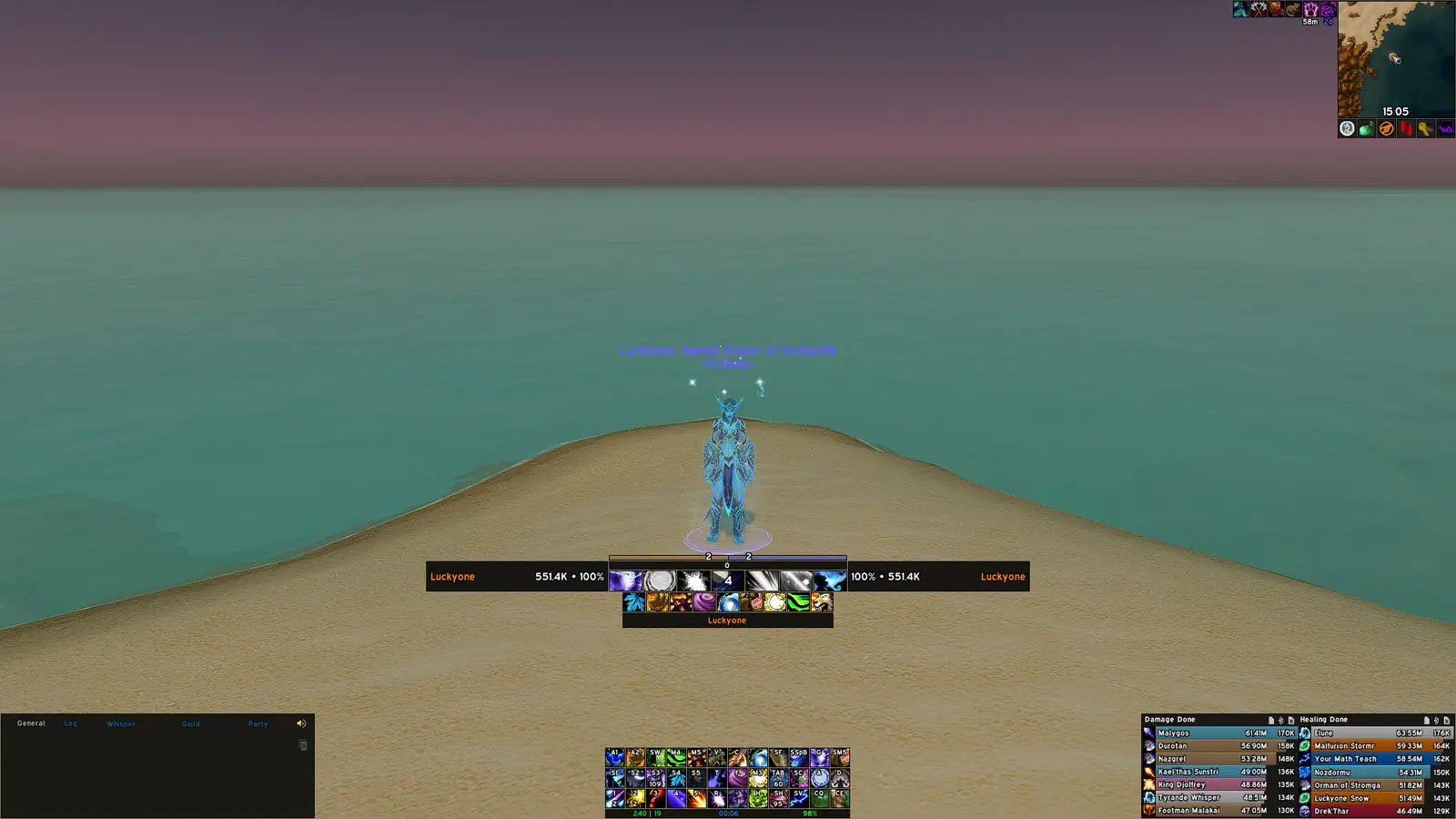
How to set up ElvUI unit frames in a safe order
Confirm the active character, client branch, profile, and resolution. A module can have its own profile scope; check it before repeating an import or resetting settings.
Change one visible setting at a time, test the same unit, and keep an export of the working setup. This separates a disabled frame from an off-screen position, a visibility condition, or a mismatched test unit.
- 1
Export first
Save a dated profile copy outside the game folder.
- 2
Choose the frame
Pick Player, Target, Focus, Pet, Party, or Raid, not a floating Nameplate.
- 3
Check its state
Confirm the selected group is enabled and visible.
- 4
Change one control
Adjust one size, text, color, or spacing option and retest.
- 5
Verify the next group
Configure another frame only after the first works.
Configure player, target, focus, and pet frames
Player and Target frames are a useful first pair because they remain easy to test while solo. Make health and power readable at a glance, then decide whether names, level, class color, portrait, status text, or auras add information you actually use. More fields are not automatically better: the important number or state should remain visible when combat gets busy.
Focus and Pet frames depend on your class and play style. A Hunter may need a visible pet frame; a player using Focus for crowd control may prioritize its name and cast state. Test with an actual pet or focus target before reducing frame size.
For a missing cast bar, identify whether it belongs to Player, Target, Focus, or another unit. The ElvUI Cast Bar guide covers its own enablement and placement.
| Frame | Useful first check | Test state |
|---|---|---|
| Player | Health, power, and readable name | Change health or power outside combat |
| Target | Target health and cast information | Select a friendly and an enemy target |
| Focus | Enablement and compact placement | Set a focus target and confirm it remains visible |
| Pet | Visibility and health/power fields | Use a character with an active pet |
| Boss or arena | Frame count and visibility rules | Test in the matching encounter or PvP instance |
Choose ElvUI party or raid frames for your group
Party and Raid frames can use different sizes and detail. Healers may prioritize health, key auras, and order; tanks may prefer a compact group block; damage roles may need only a fast health read.
Solo login cannot confirm a group layout. Join the content you play and check frame order, spacing, text, and group changes. If the tank should appear first, use the sort controls in your branch and verify with a real party.
| Use case | Keep visible | Reduce first |
|---|---|---|
| Healer | Names, health loss, and decision-critical auras | Decorative fields that compete with health |
| Tank | Party order, health, and threat-relevant states | Large portraits or unused status text |
| Damage role | Health and key group alerts | Indicators that do not change your next action |
| Large raid | Clear subgroup boundaries and readable names | Excessive frame width or redundant text |
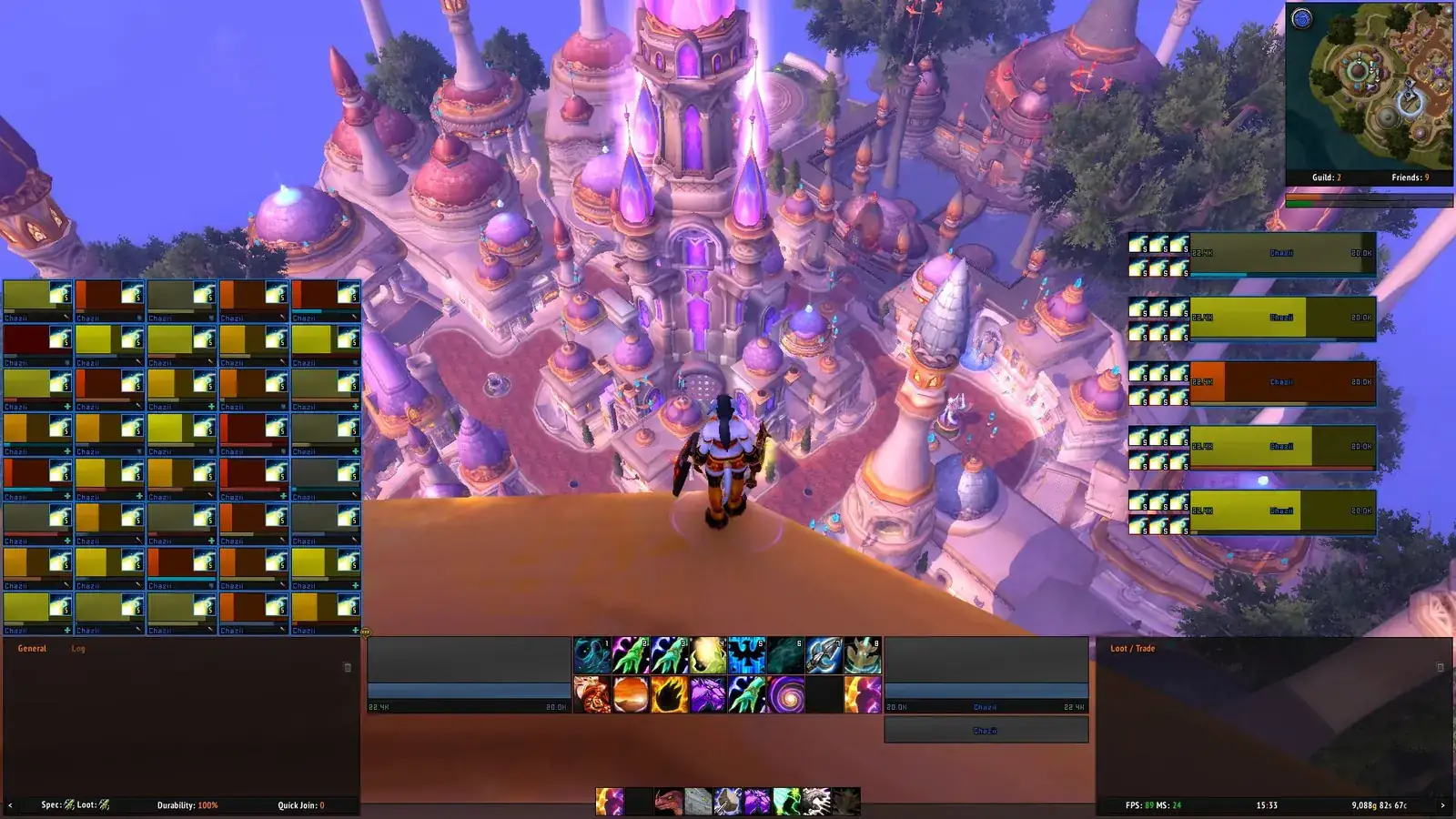
Tune health bars, text, class colors, auras, and spacing
Health color can show class or another state. If class colors are missing, check the color mode for that frame before changing a global theme. Keep health text readable when the bar is partly empty.
Level text, power bars, portraits, and auras compete for space. Keep only useful fields: a healer may need selected debuffs on group frames, while a solo player may prefer a clean Player and Target pair. Confirm which frame owns an aura before changing its icon count or spacing.
When an aura appears on a floating Nameplate rather than a status box, changing UnitFrames will not fix it. The separate Aura Filters guide explains how to identify the display and narrow a filter without hiding useful effects.
- Use class colors only when they make the unit easier to identify.
- Show level text only where it helps distinguish a relevant unit.
- Keep the health value readable at the smallest frame size you plan to use.
- Test aura changes with one known buff or debuff before adding more rules.
- Change icon count, spacing, and size separately so the cause stays clear.
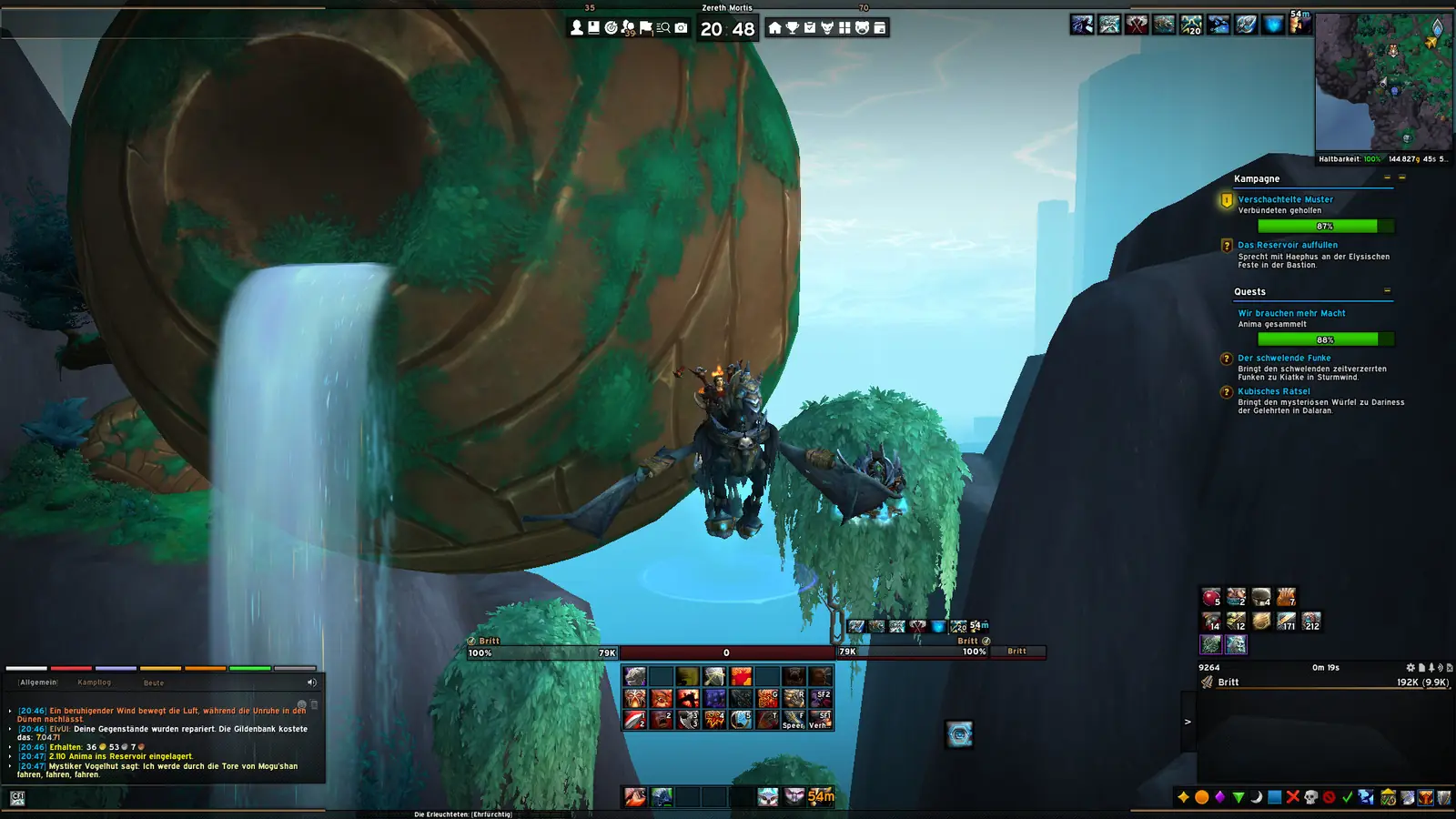
Move frames and verify the layout at your resolution
Resolution, UI scale, font size, and health text change how much room a frame needs. Use the anchor or mover workflow shown in your current options, then check that the frame does not cover action bars, character space, or another panel.
Test normal play and a group state after moving it. Check truncated names, readable health, and visibility conditions. Keep notes or separate profiles if you switch resolutions.
- 1
Note the display
Record resolution and UI scale.
- 2
Move one frame
Use its current mover or anchor, then close the overlay.
- 3
Check overlap
Inspect action bars, cast bars, chat, and nearby frames.
- 4
Retest in context
Use a real group when tuning Party or Raid frames.
Troubleshoot frames without resetting the profile
For a missing frame, confirm the selected unit, group enablement, active profile, and visibility condition. Create the unit state it needs: Party requires a group and Focus requires a focus target.
For duplicates, compare ElvUI with Blizzard's default frames and companion addons; disable one source briefly, then restore it if unrelated. If only text or auras are missing, inspect that field or filter instead of resetting every module. Keep the export until the fix survives a reload.
| Symptom | Check first | Safe next test |
|---|---|---|
| Player or target frame is absent | Frame enablement, active profile, and visibility | Enable only that frame and select a visible target |
| Party or raid grid is empty | Group type and current party/raid state | Join a test group and verify its frames there |
| Class color or text is missing | Color mode or text option on the owning frame | Change one field and compare the same unit |
| Frames appear twice | Blizzard frames and companion addons | Disable one display source for a brief comparison |
| Auras are cluttered or absent | Aura row, filter, and display owner | Test one known effect; use the Aura Filters guide if needed |
Protect the profile after a successful change
After the layout works, export it with a clear name and keep the previous copy until the new one passes a reload. Test unfamiliar imports on a separate profile because they can change anchors, colors, and several modules.
See the ElvUI profiles guide for imports, the installation guide for AddOns folder issues, and ElvUI troubleshooting when multiple modules fail together.
ElvUI Unit Frames FAQ
How do I open ElvUI UnitFrames settings?
Type <code>/ec</code>, open UnitFrames, select a frame group, and test the same unit or group state afterward.
Why are my ElvUI party frames not showing?
Enable the correct group and test while grouped. Profile scope, visibility conditions, or selecting the other group type can make a valid layout look empty when solo.
Can I put the tank first in ElvUI party frames?
Use the sorting controls in your client branch and verify with a real party; a solo screen cannot confirm group order.
How do I show class colors on ElvUI unit frames?
Check the color mode on that frame's health bar, then compare one frame with a known class.
Should I reset my ElvUI profile to fix a missing frame?
Usually not. Check enablement, profile scope, visibility, and the test unit first; export before a broad reset.